Sending a Consultation Survey from Propel Rx
This topic is intended for Independent pharmacies only and is not applicable to Rexall pharmacies.
With the Surveys module, you have the ability to send surveys to patients to capture information about their ailment in preparation for a consultation. Surveys are pre-built for different ailments and the number your pharmacy can access depends on your subscription plan. They can be sent via text message or email, or shared using a link or PIN that can be inputted into your pharmacy's iPad. The responses can be viewed from within the Surveys tile in Propel Rx as well as the Patient Folder to inform your clinical decision making.
A consultation survey can be sent from Propel Rx from any one of the following locations. Select the dropdowns to learn more.
 From the Surveys Tile
-
Navigate to the Surveys tile on the Workbench.
-
Select the New action button on the bottom.
-
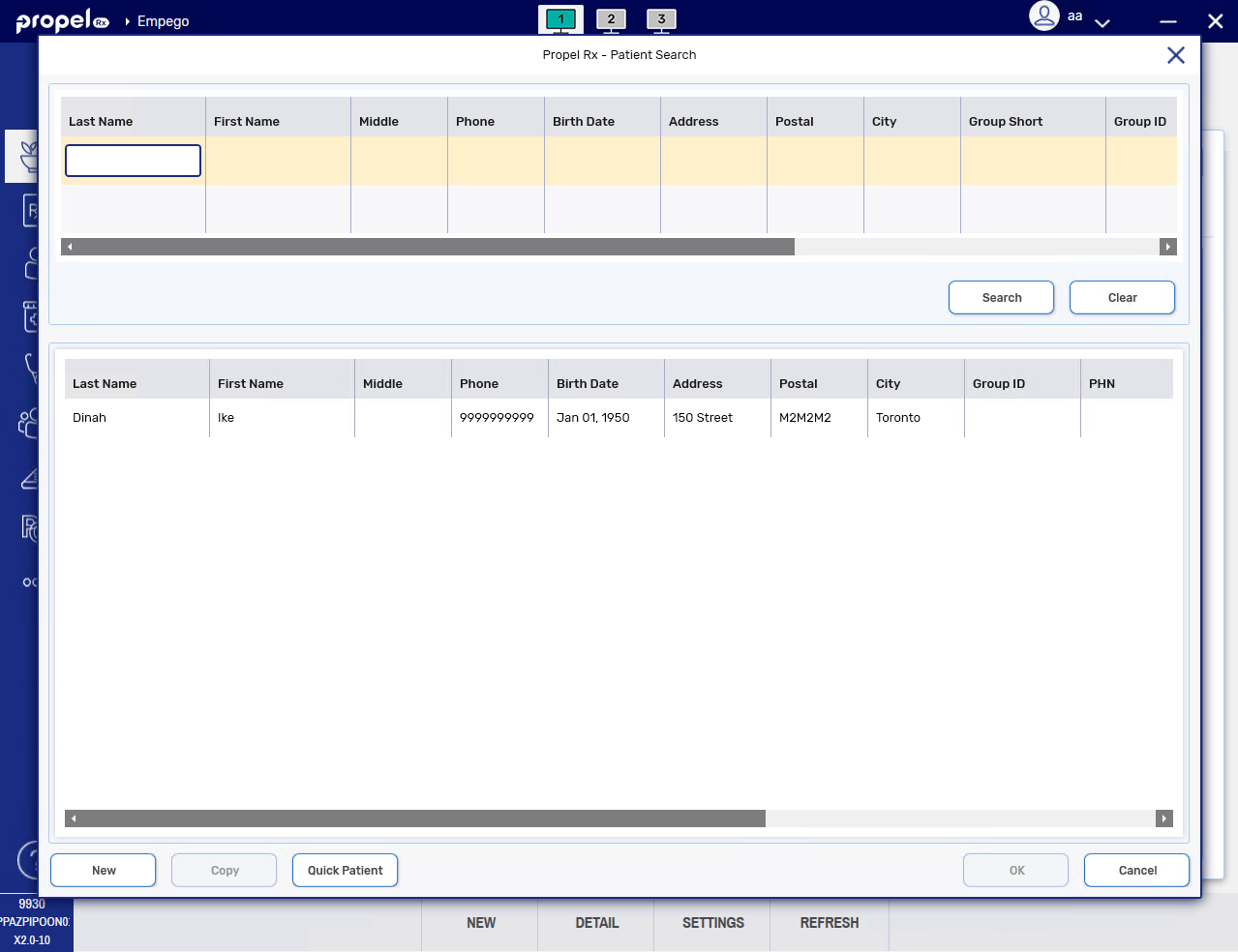
The Patient Search window opens. Search for and select the patient.
-
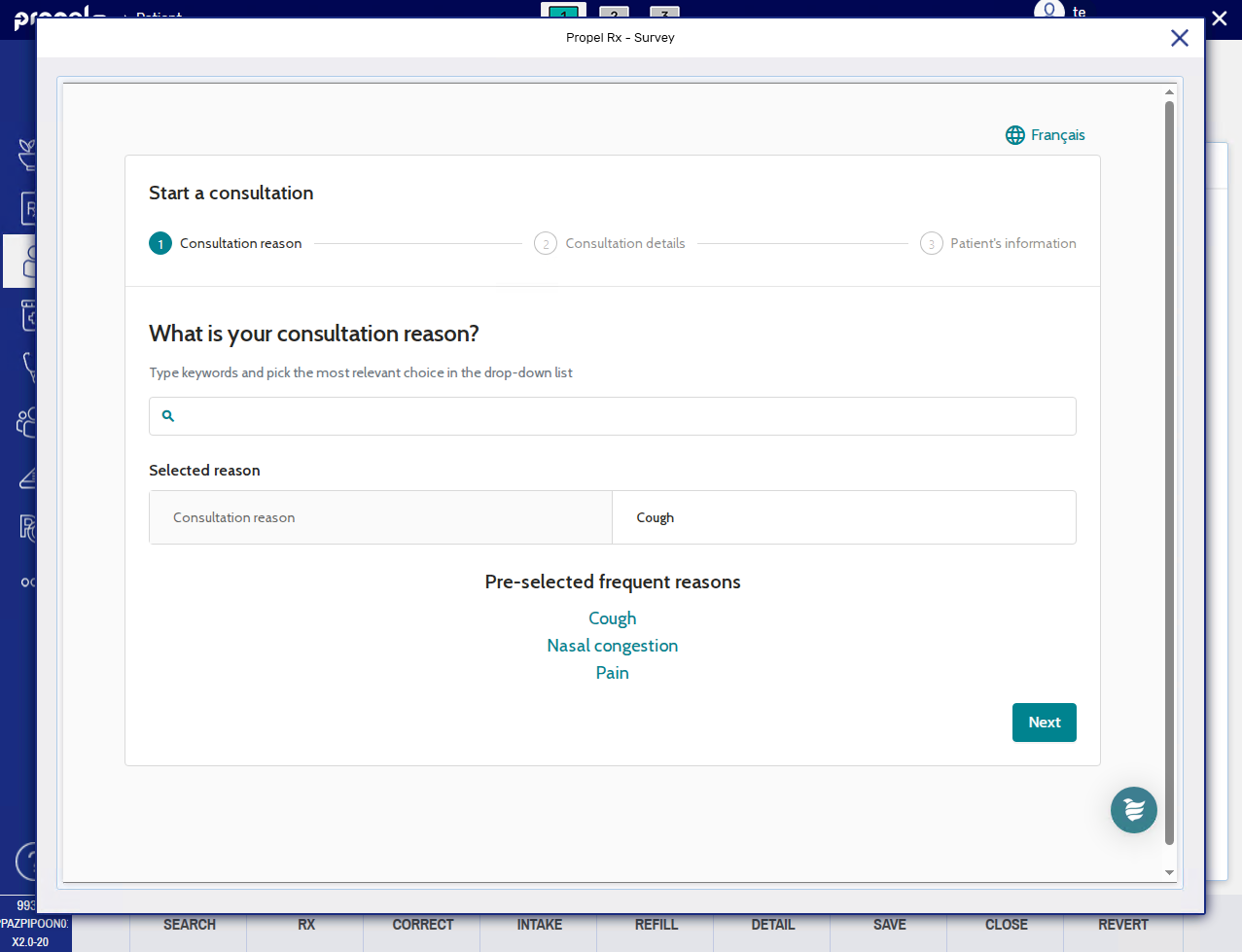
The Survey window opens. Enter the consultation reason in the given field and select the appropriate choice from the dropdown menu. Once done, select Next.
-
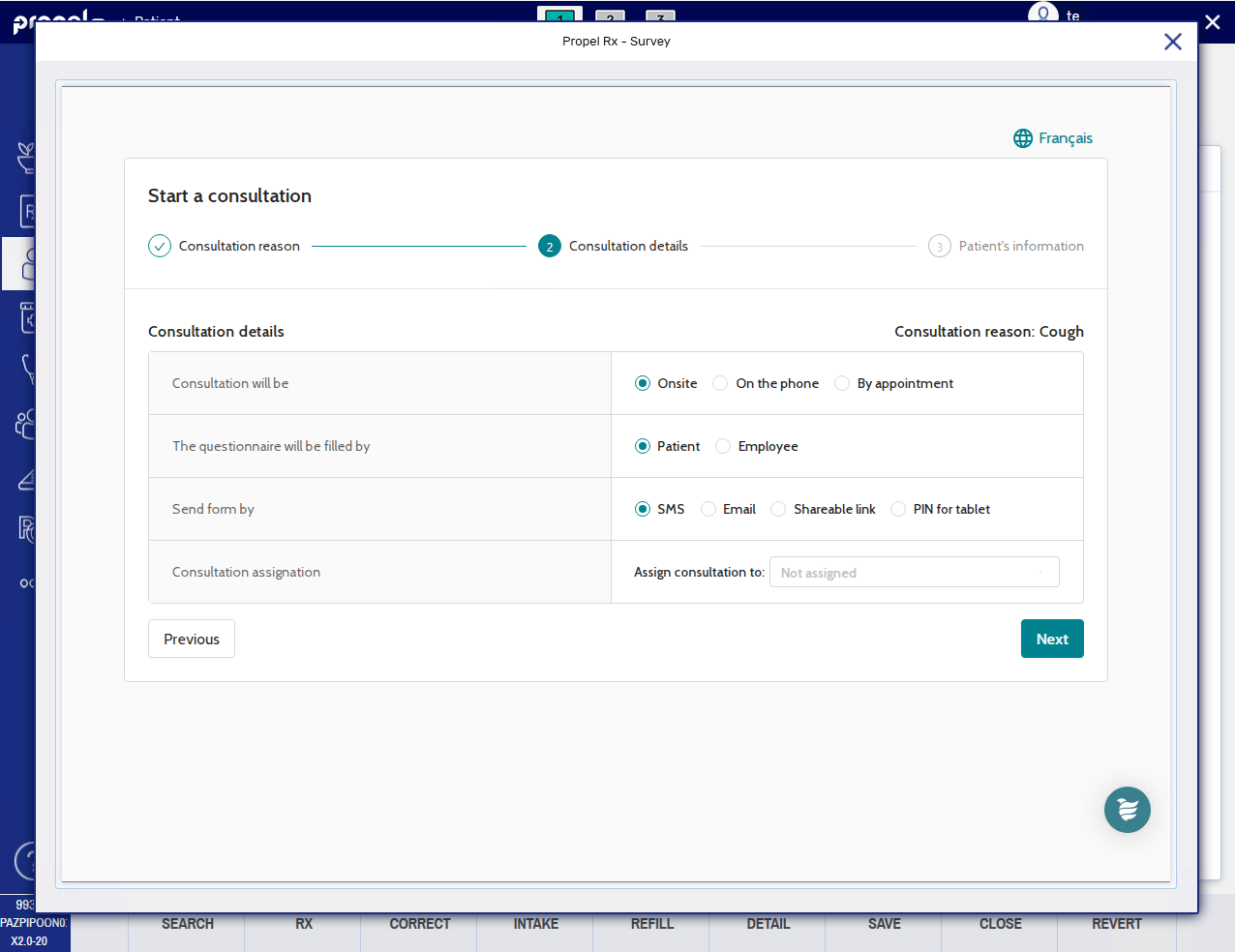
For the consultation details:
-
Select where the consultation will take place (onsite, on the phone, by appointment).
The appointment option will only be visible if your pharmacy is integrated with the Patient App program.
-
Select whether the patient or a pharmacy team member is filling out the survey.
-
Select how the survey will be sent. You can send a survey to the patient's mobile phone number or email. Alternatively, you can copy a link which you provide to the patient or enter a 4-digit PIN on your pharmacy's iPad for the patient to complete their survey. For more information about the tablet PIN link, see Shareable links.
Regardless of who you assign the consultation to, the survey will be associated with the logged in pharmacist from start to finish.
Select Next once done.
-
-
Review the patient's information sent from Propel Rx.
Surveys can be sent in French by setting the patient's Preferred language to French on the survey site.
What patient information is shared from Propel Rx?
-
First and last name
-
Gender
-
Date of birth
-
Phone number
-
Email address
-
Backend patient ID
-
PHN
-
Preferred language
Propel Rx does not share prescription information for the survey.
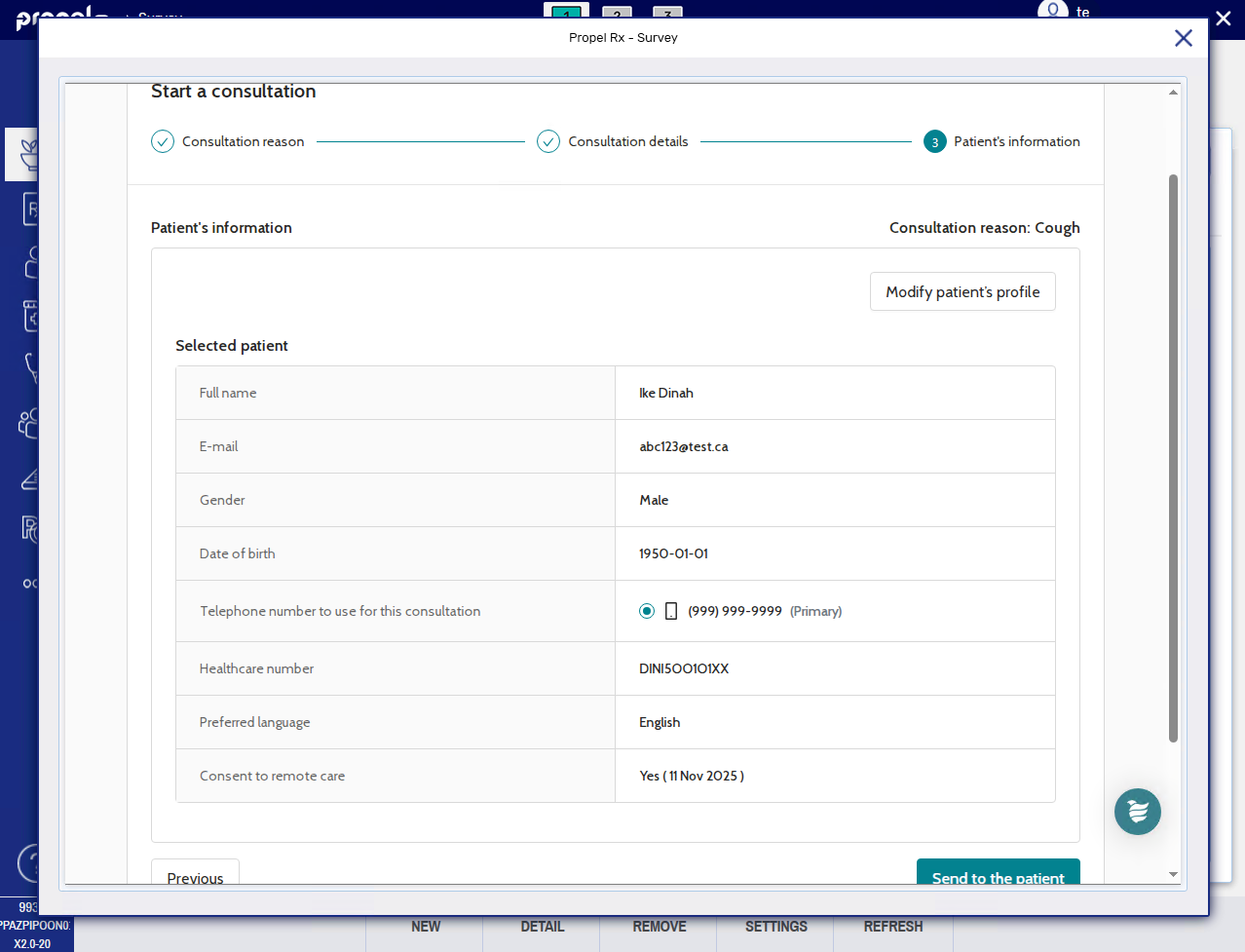
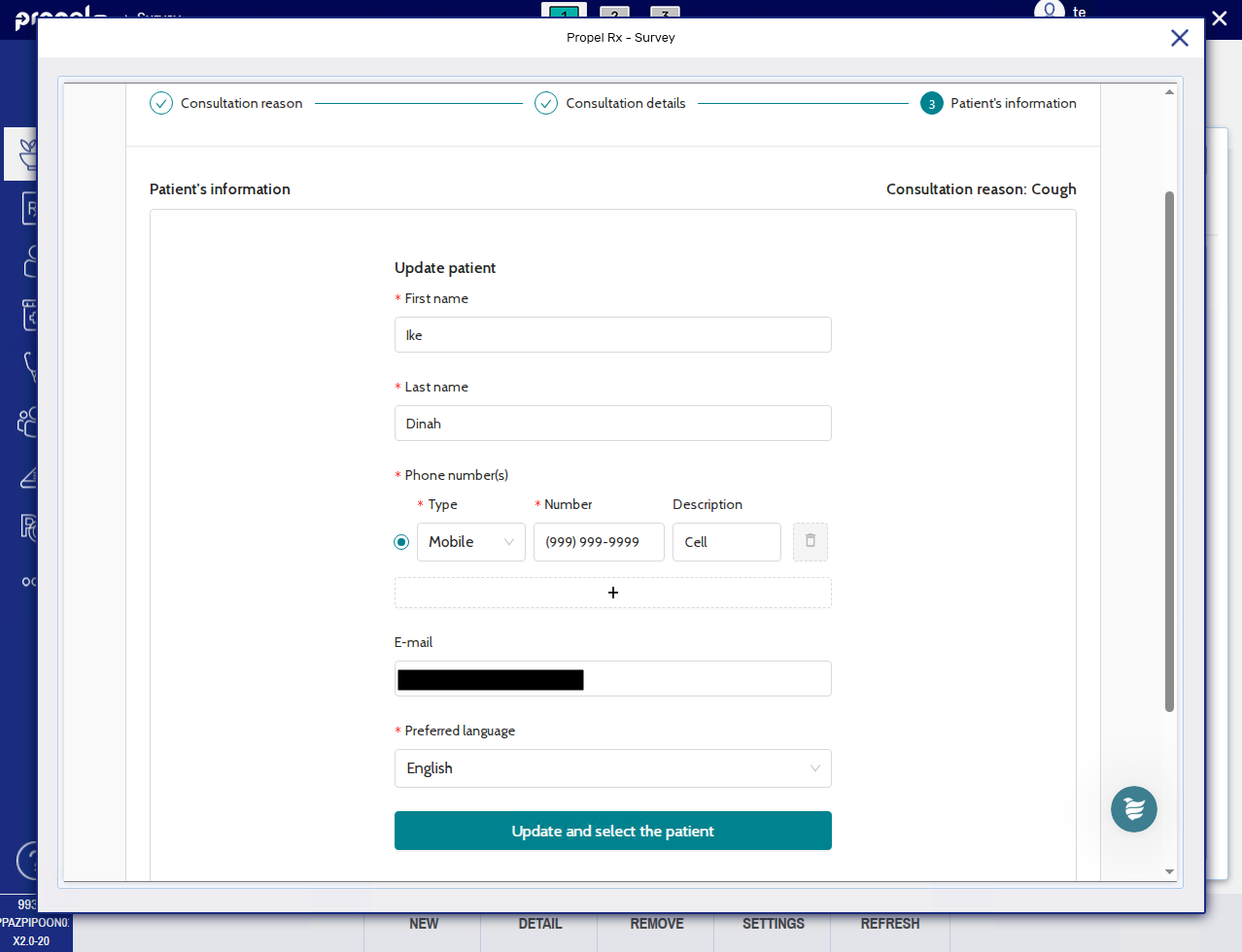
If any information is missing or not accurate, select Modify patient's profile, make any necessary edits, and then select Update and select the patient. Any changes made will be saved on the survey site but not write back to Propel Rx.
-
-
Select Send to the patient/Submit. If sent successfully, a confirmation page displays.
-
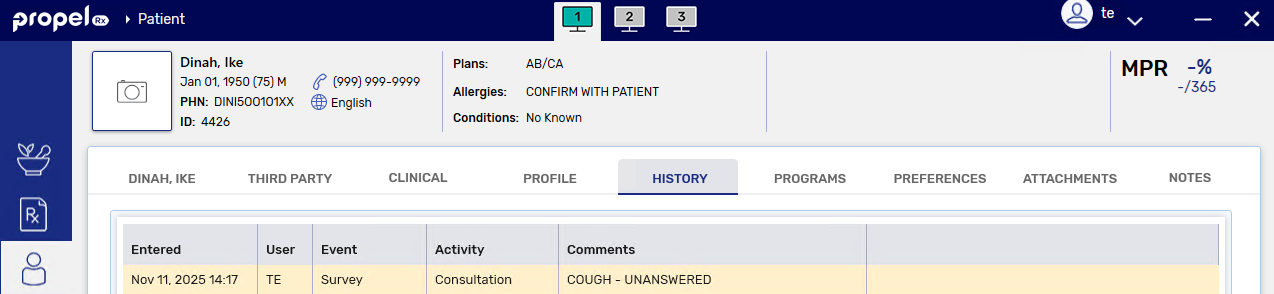
A record is added to the Patient Folder History tab with an Event of Survey, Activity of Consultation, User (pharmacist) who sent the survey, and Comments stating the survey type and its status (unanswered).
-
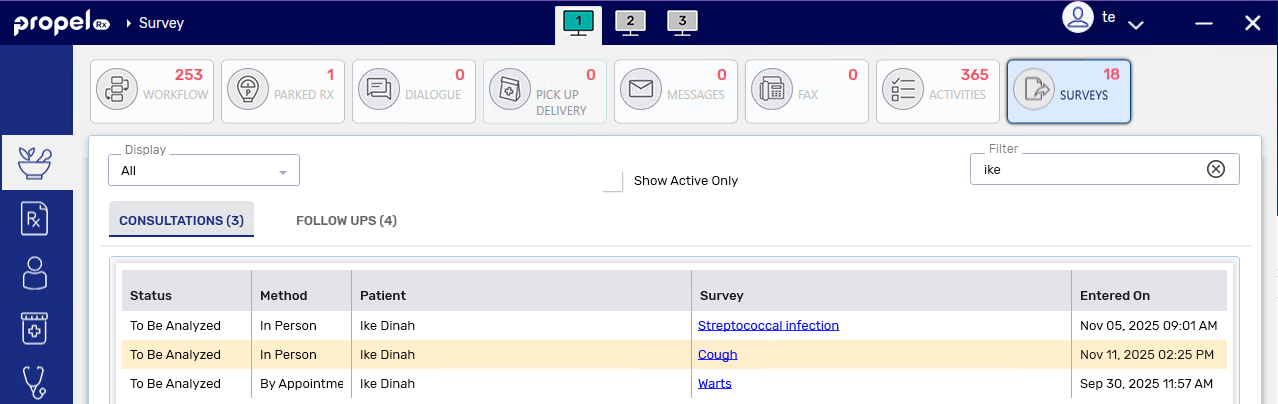
A row is added to the Surveys tile under the Consultations tab.
To view Unanswered surveys, ensure the Show Active Only checkbox is deselected.
-
From the Patient Profile
-
Open the Patient Folder.
-
On the Profile tab, select Rx > PFS > Consultation.
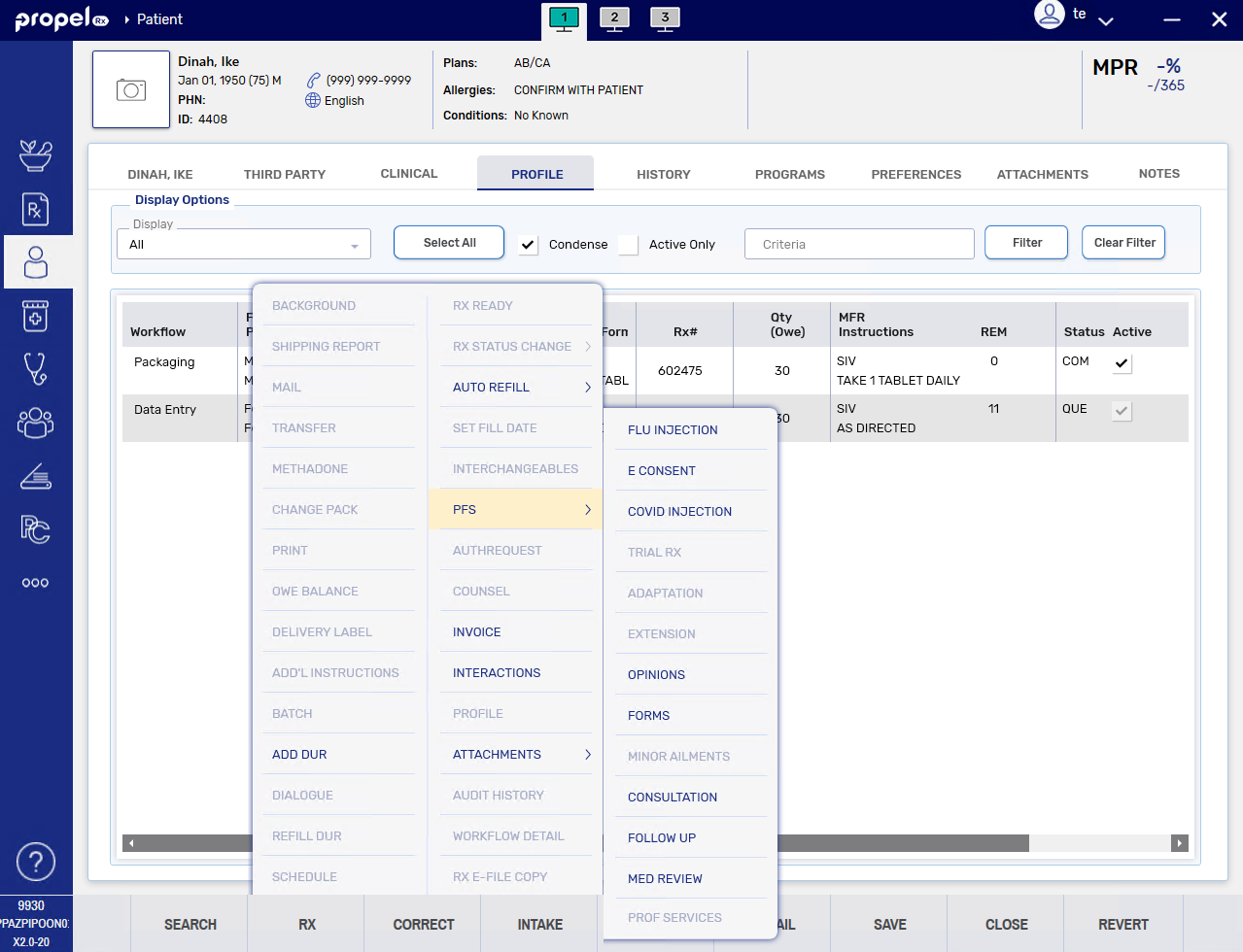
The Survey window opens.
-
Enter the consultation reason in the given field and select the appropriate choice from the dropdown menu. Once done, select Next.
-
For the consultation details:
-
Select where the consultation will take place (onsite, on the phone, by appointment).
The appointment option will only be visible if your pharmacy is integrated with the Patient App program.
-
Select whether the patient or a pharmacy team member is filling out the survey.
-
Select how the survey will be sent. You can send a survey to the patient's mobile phone number or email. Alternatively, you can copy a link which you provide to the patient or enter a 4-digit PIN on your pharmacy's iPad for the patient to complete their survey. For more information about the tablet PIN link, see Shareable links.
Regardless of who you assign the consultation to, the survey will be associated with the logged in pharmacist from start to finish.
Select Next once done.
-
-
Review the patient's information sent from Propel Rx.
Surveys can be sent in French by setting the patient's Preferred language to French on the survey site.
What patient information is shared from Propel Rx?
-
First and last name
-
Gender
-
Date of birth
-
Phone number
-
Email address
-
Backend patient ID
-
PHN
-
Preferred language
Propel Rx does not share prescription information for the survey.
If any information is missing or not accurate, select Modify patient's profile, make any necessary edits, and then select Update and select the patient. Any changes made will be saved on the survey site but not write back to Propel Rx.
-
-
Select Send to the patient/Submit. If sent successfully, a confirmation page displays.
-
A record is added to the Patient Folder History tab with an Event of Survey, Activity of Consultation, User (pharmacist) who sent the survey, and Comments stating the survey type and its status (unanswered).
-
A row is added to the Surveys tile under the Consultations tab.
To view Unanswered surveys, ensure the Show Active Only checkbox is deselected.
-
From Rx Detail
-
Process a prescription until it reaches Rx Detail.
-
Select Rx > PFS > Consultation.

The Survey window opens.
-
Enter the consultation reason in the given field and select the appropriate choice from the dropdown menu. Once done, select Next.
-
For the consultation details:
-
Select where the consultation will take place (onsite, on the phone, by appointment).
The appointment option will only be visible if your pharmacy is integrated with the Patient App program.
-
Select whether the patient or a pharmacy team member is filling out the survey.
-
Select how the survey will be sent. You can send a survey to the patient's mobile phone number or email. Alternatively, you can copy a link which you provide to the patient or enter a 4-digit PIN on your pharmacy's iPad for the patient to complete their survey. For more information about the tablet PIN link, see Shareable links.
Regardless of who you assign the consultation to, the survey will be associated with the logged in pharmacist from start to finish.
Select Next once done.
-
-
Review the patient's information sent from Propel Rx.
Surveys can be sent in French by setting the patient's Preferred language to French on the survey site.
What patient information is shared from Propel Rx?
-
First and last name
-
Gender
-
Date of birth
-
Phone number
-
Email address
-
Backend patient ID
-
PHN
-
Preferred language
Propel Rx does not share prescription information for the survey.
If any information is missing or not accurate, select Modify patient's profile, make any necessary edits, and then select Update and select the patient. Any changes made will be saved on the survey site but not write back to Propel Rx.
-
-
Select Send to the patient/Submit. If sent successfully, a confirmation page displays.
-
A record is added to the Patient Folder History tab with an Event of Survey, Activity of Consultation, User (pharmacist) who sent the survey, and Comments stating the survey type and its status (unanswered).
-
A row is added to the Surveys tile under the Consultations tab.
To view Unanswered surveys, ensure the Show Active Only checkbox is deselected.
-
From the Workbench
-
On the Workbench, select one prescription for the patient.
-
Select Rx > PFS > Consultation.
Consultation button is disabled
The Consultation button will not be available if more than one prescription is highlighted on the Workbench or the highlighted prescription is one of the following types: PhotoRx, Be Well™, diem health, IDP, or DUR.
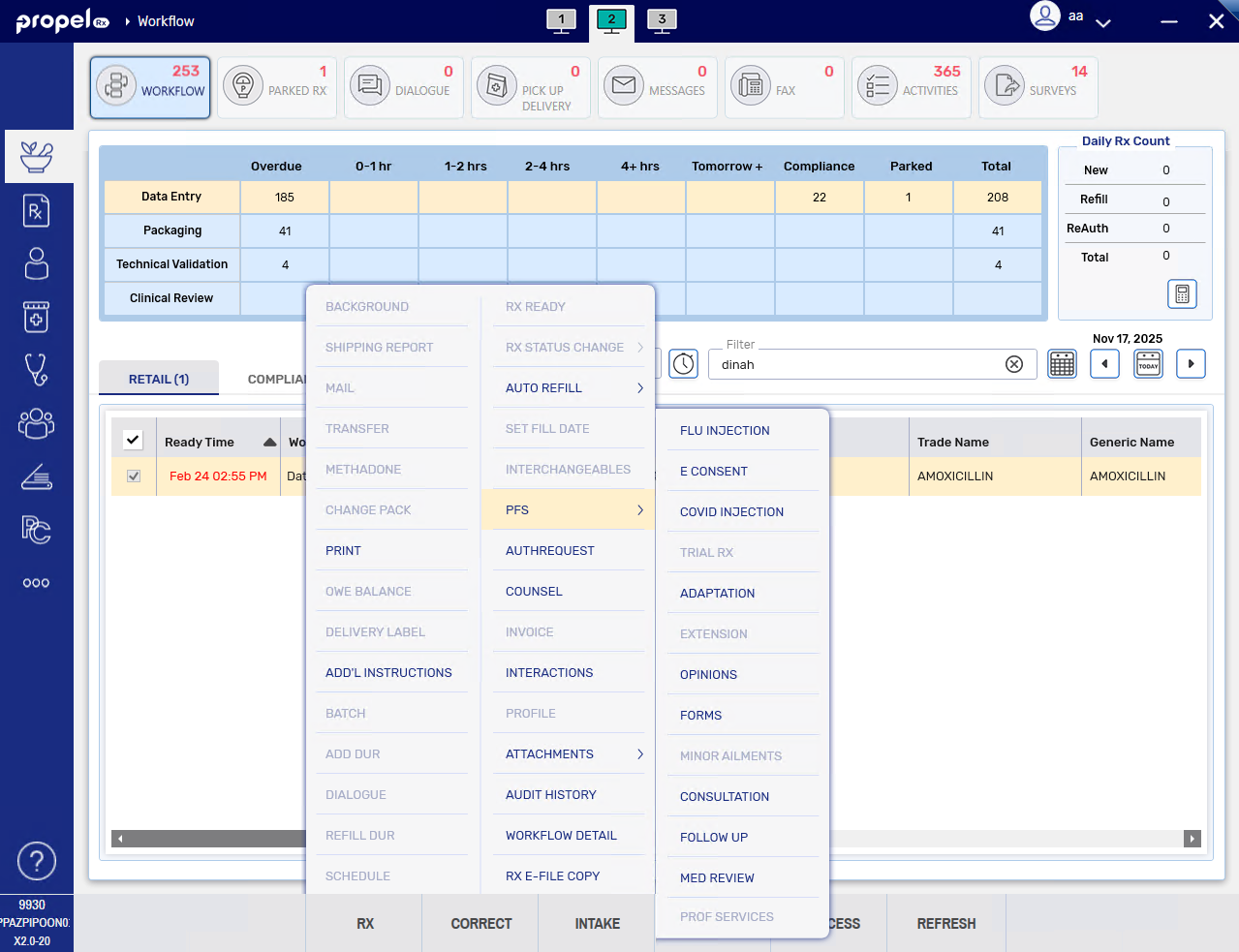
The Survey window opens.
-
Enter the consultation reason in the given field and select the appropriate choice from the dropdown menu. Once done, select Next.
-
For the consultation details:
-
Select where the consultation will take place (onsite, on the phone, by appointment).
The appointment option will only be visible if your pharmacy is integrated with the Patient App program.
-
Select whether the patient or a pharmacy team member is filling out the survey.
-
Select how the survey will be sent. You can send a survey to the patient's mobile phone number or email. Alternatively, you can copy a link which you provide to the patient or enter a 4-digit PIN on your pharmacy's iPad for the patient to complete their survey. For more information about the tablet PIN link, see Shareable links.
Regardless of who you assign the consultation to, the survey will be associated with the logged in pharmacist from start to finish.
Select Next once done.
-
-
Review the patient's information sent from Propel Rx.
Surveys can be sent in French by setting the patient's Preferred language to French on the survey site.
What patient information is shared from Propel Rx?
-
First and last name
-
Gender
-
Date of birth
-
Phone number
-
Email address
-
Backend patient ID
-
PHN
-
Preferred language
Propel Rx does not share prescription information for the survey.
If any information is missing or not accurate, select Modify patient's profile, make any necessary edits, and then select Update and select the patient. Any changes made will be saved on the survey site but not write back to Propel Rx.
-
-
Select Send to the patient/Submit. If sent successfully, a confirmation page displays.
-
A record is added to the Patient Folder History tab with an Event of Survey, Activity of Consultation, User (pharmacist) who sent the survey, and Comments stating the survey type and its status (unanswered).
-
A row is added to the Surveys tile under the Consultations tab.
To view Unanswered surveys, ensure the Show Active Only checkbox is deselected.
-
What's Next?
Once the patient submits their responses to the survey, the status of the survey changes to "To Be Analyzed" on the Surveys Workbench > Consultations tab and another record is added to the Patient Folder History tab.
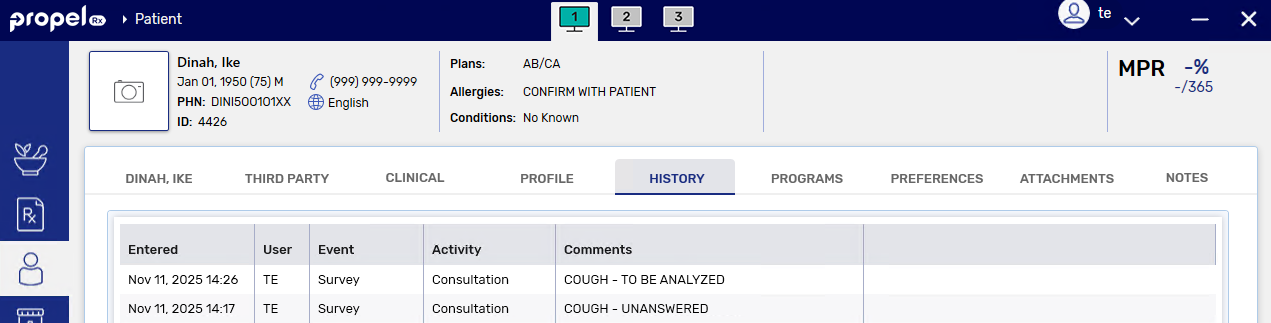
The pharmacist can now proceed with analyzing the patient's responses and concluding the consultation. See Completing a Consultation from a Survey for next steps.