Accessing Survey Settings and Statistics
This topic is intended for Independent pharmacies only and is not applicable to Rexall pharmacies.
Within Propel Rx, you can access and configure survey settings including pharmacy contact information, logos that print on patient facing documentation, shareable links, and more. You can also review statistics on the number of consultations or follow-ups completed using the Surveys module.
To access survey settings within Propel Rx:
-
On the Workbench, navigate to the Surveys tile.
-
Select the Settings action button at the bottom. A new window opens with various tabs at the top (General, Statistics, Shareable links, Notification system, Franchise settings).

General
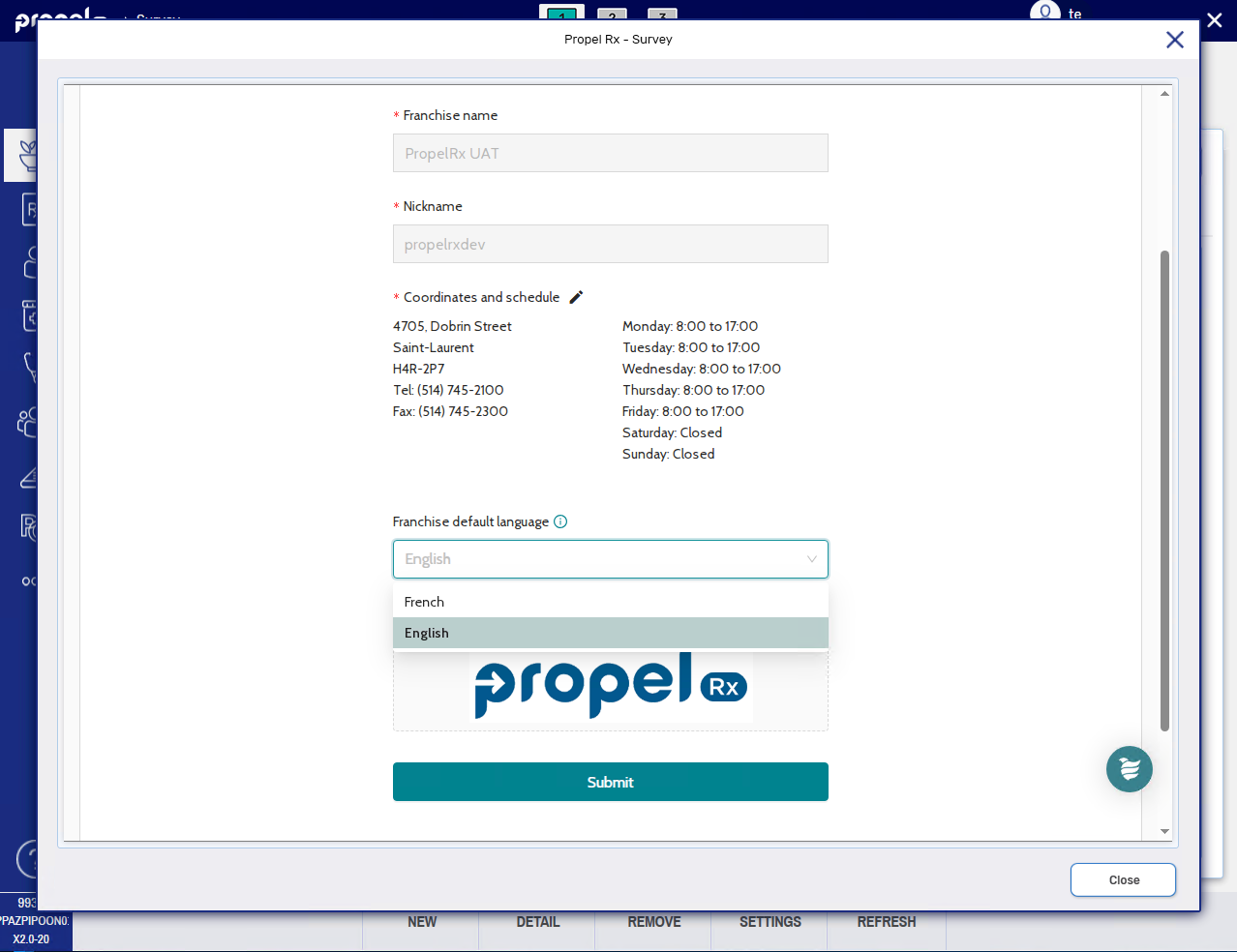
The General tab contains general information about your pharmacy that prints on forms and other documents sent to the patient. This includes pharmacy name, contact information, hours, default language, and logo. From this tab, you can edit the contact information for your pharmacy and default language. Any changes to your pharmacy's general information are saved on the survey site only; they do not write back to Propel Rx.
To modify your pharmacy's general information:
-
In the Coordinates and schedule section, select the edit button
 .
. -
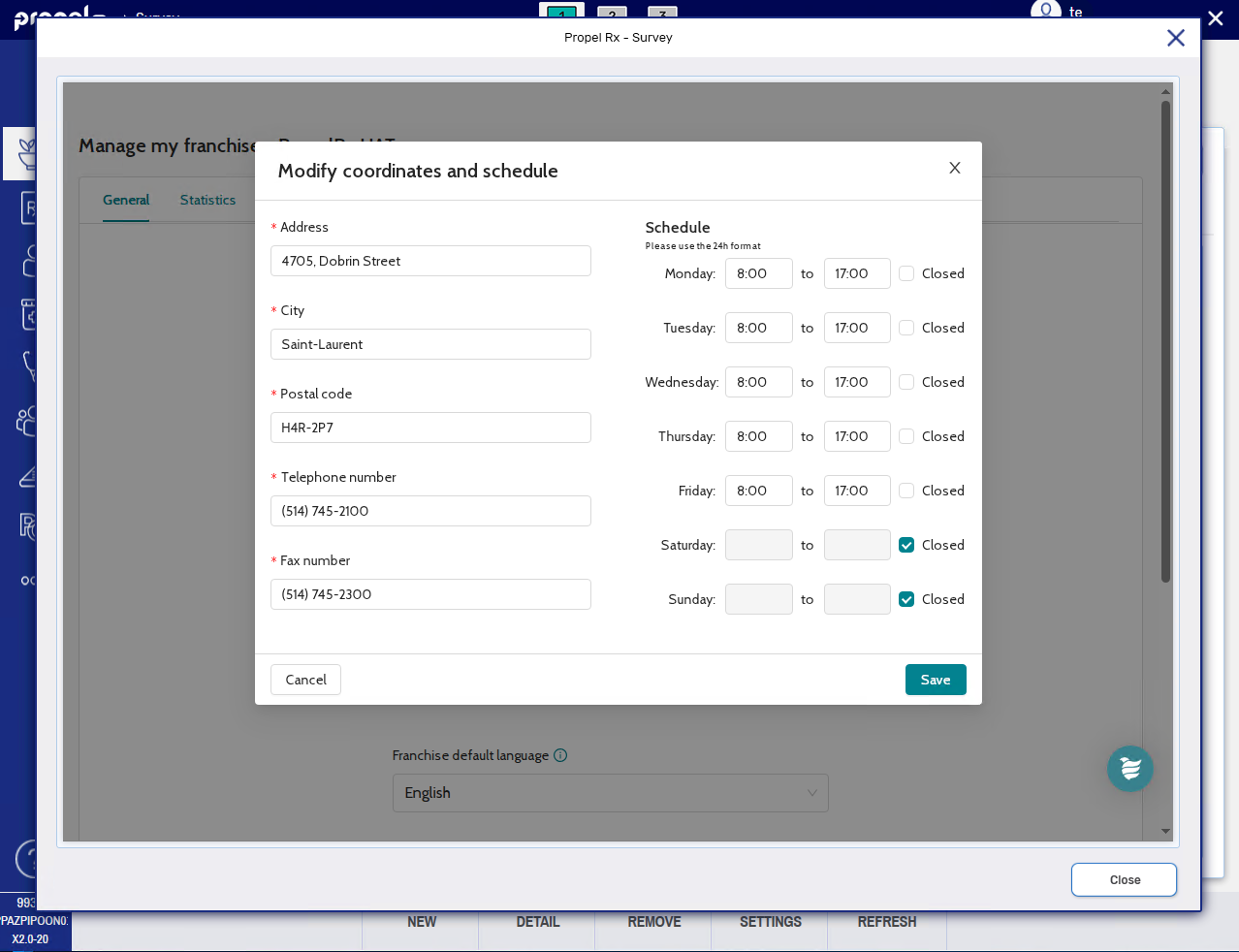
Update the Address, City, Postal Code, Telephone number, and/or Fax number as required.
-
Under the Schedule section, modify the hours for each day as needed. If your pharmacy is not open on a particular weekday, select the Closed checkbox.
-
Select Save.
-
From the Franchise default language dropdown, select English or French.
-
Select Submit.
Statistics
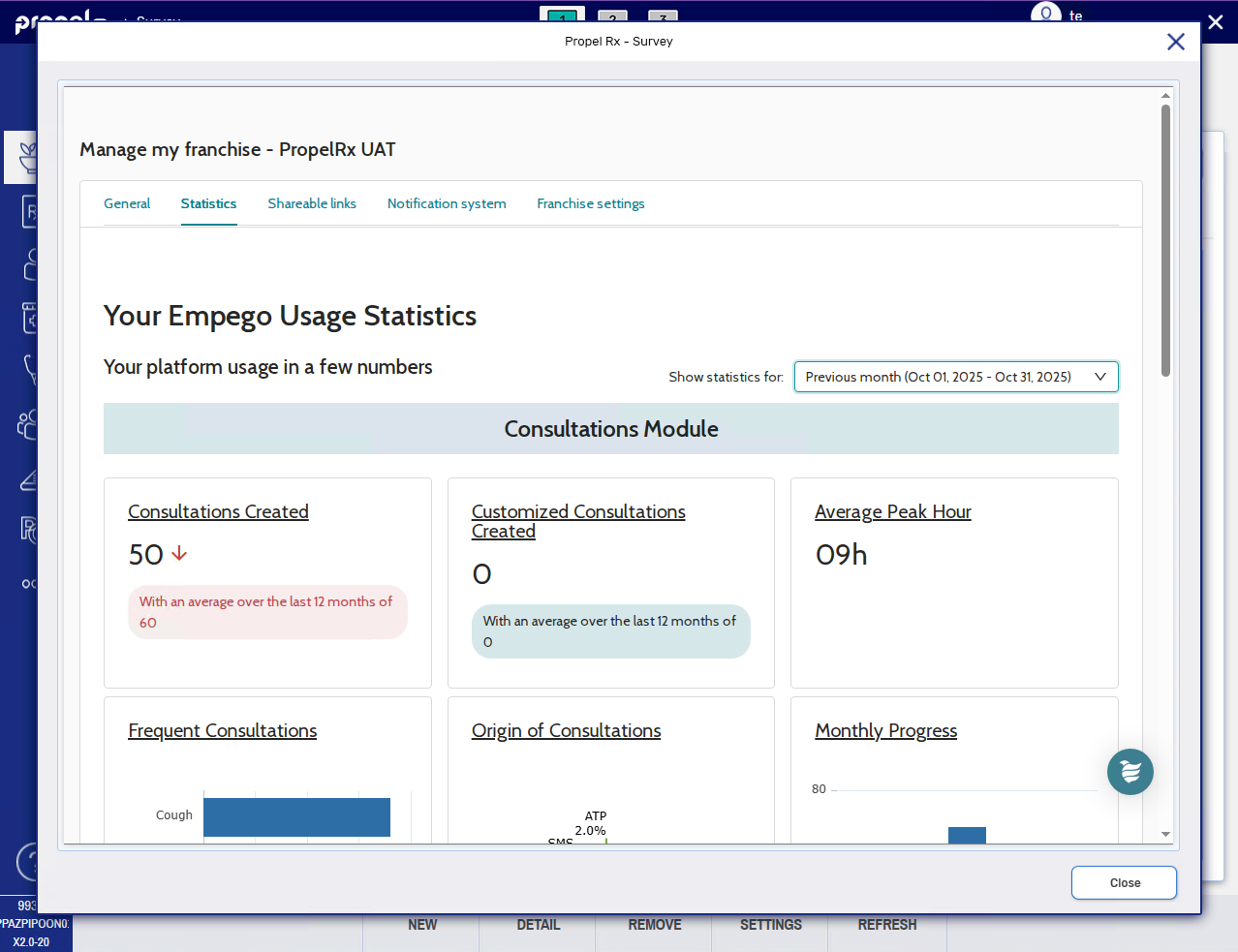
The Statistics tab contains data on survey usage broken down into consultations and follow-ups for a given period of time. You can view the number of surveys created broken down by type, the origin of consultation requests, follow-up response rate, and more. To modify the date range for statistics, select the Show statistics for dropdown and choose a date range or enter a custom one.
These statistics are generated by the survey site. There are no Propel Rx reports on survey usage.
Table 1. Overview of survey usage statistics.
| Module | Statistic | Description |
|---|---|---|
| Consultations | Consultations Created | Number of consultations created over the given time period. The average over the last 12 months is provided below with an arrow indicating if the number of consultations increased (up) or decreased (down) relative to the average. |
| Customized Consultations Created | Number of consultations created for a custom reason over the given time period. | |
| Average Peak Hour | Hour within the day, on average, when the most consultations were created. | |
| Frequent Consultations | A bar graph showing the survey types that were most used for the given time period. | |
| Origin of Consultations | A bar graph showing the distribution of consultations by method of delivery for the given time period. | |
| Monthly Progress | A bar graph showing the number of consultations per month for the past four months. | |
| Follow-ups | Frequent Follow-Ups | Number of follow-ups created over the given time period. The average over the last 12 months is provided below with an arrow indicating if the number of follow-ups increased (up) or decreased (down) relative to the average. |
| Assisted Follow-Ups | Percentage and number of follow-ups where a pharmacy team member assisted the patient with its completion for the given time period. | |
| Patient Contact Requested | Percentage and number of follow-ups for the given time period where a patient indicated on the follow-up form they wanted to be contacted by your pharmacy. | |
| Response Rate | Percentage and number of follow-ups that were completed for the given time period. | |
| Follow-Ups Sent | A bar graph showing the number of follow-ups sent for each survey type. | |
| Monthly Progress | A bar graph showing the number of follow-ups per month for the past four months. |
Shareable links
The Shareable links tab contains links and QR codes for consultation surveys that can be displayed physically in your pharmacy, shared online, or entered on your pharmacy's iPad. The links will open a public page associated to your pharmacy.
Select the dropdowns below to learn about the different types of links.
 Tablet PIN link
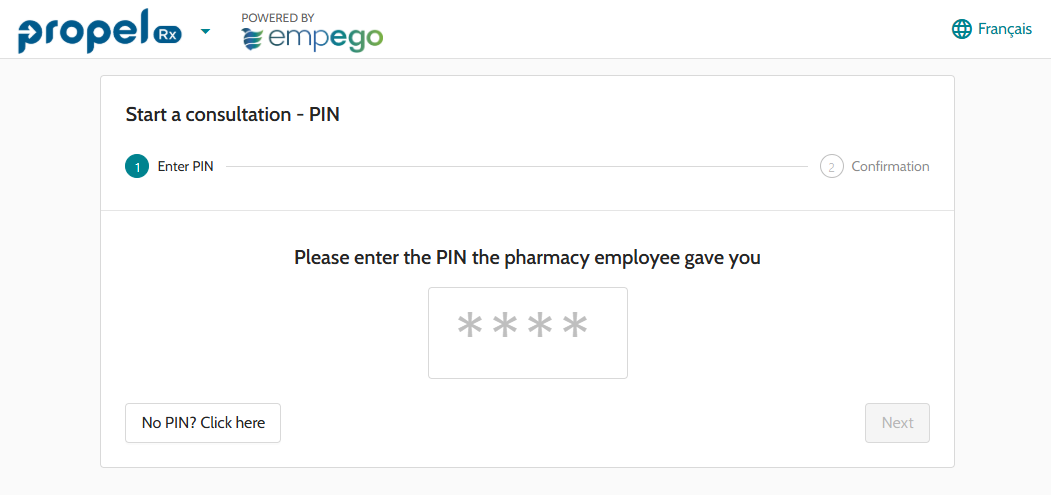
A tablet PIN link can be entered on your pharmacy's iPad. When the link is opened, a page displays for patients to enter a 4-digit PIN associated to their survey. PINs can be generated when sending a consultation survey.
Add the webpage to your home screen for quick access. See Add a website icon on the Home Screen for information on how to do this.
General link
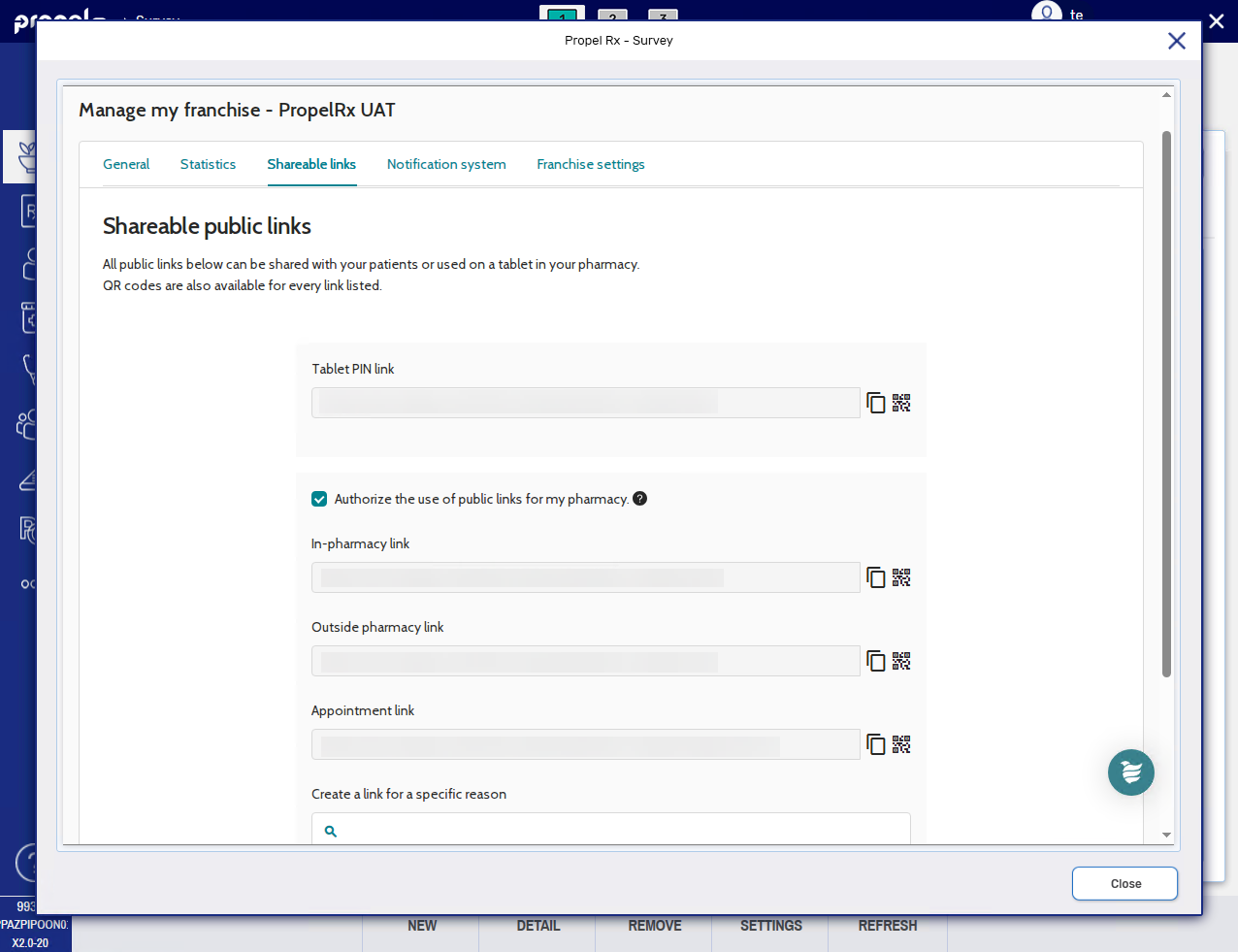
For general links, patients search for their consultation reason first before completing the associated questionnaire. General links are pre-made for your pharmacy and can be used once enabled.
To enable the use of general links:
-
Select the checkbox beside the Authorize the use of public links for my pharmacy.
-
Select the copy button
 to copy the URL to the clipboard or select the QR code
  to download it. There are three links available:
-
In-pharmacy link - to be displayed physically in the pharmacy as a QR code.
-
Outside pharmacy link - to be displayed online on your pharmacy's website, social media, or other online presence.
-
Appointment link - to be embedded in an appointment booking platform.
-
Notification system
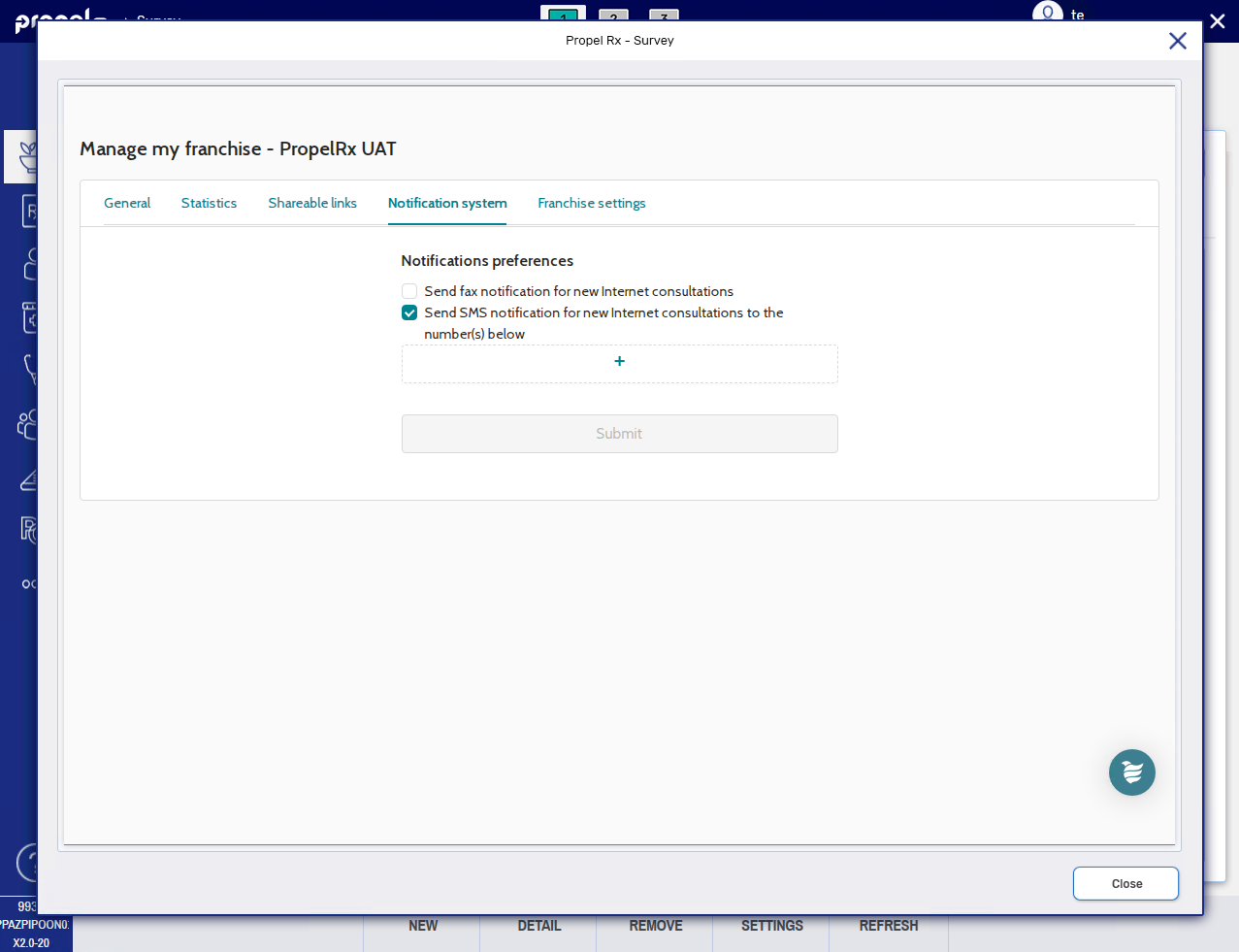
The Notification system tab lets you configure fax and/or text message notifications for consultation requests initiated by patients using an external link. Select the applicable checkbox(es) to enable the notifications. If SMS is selected, select the + button to add a mobile phone number for the purposes of notification.
Franchise settings
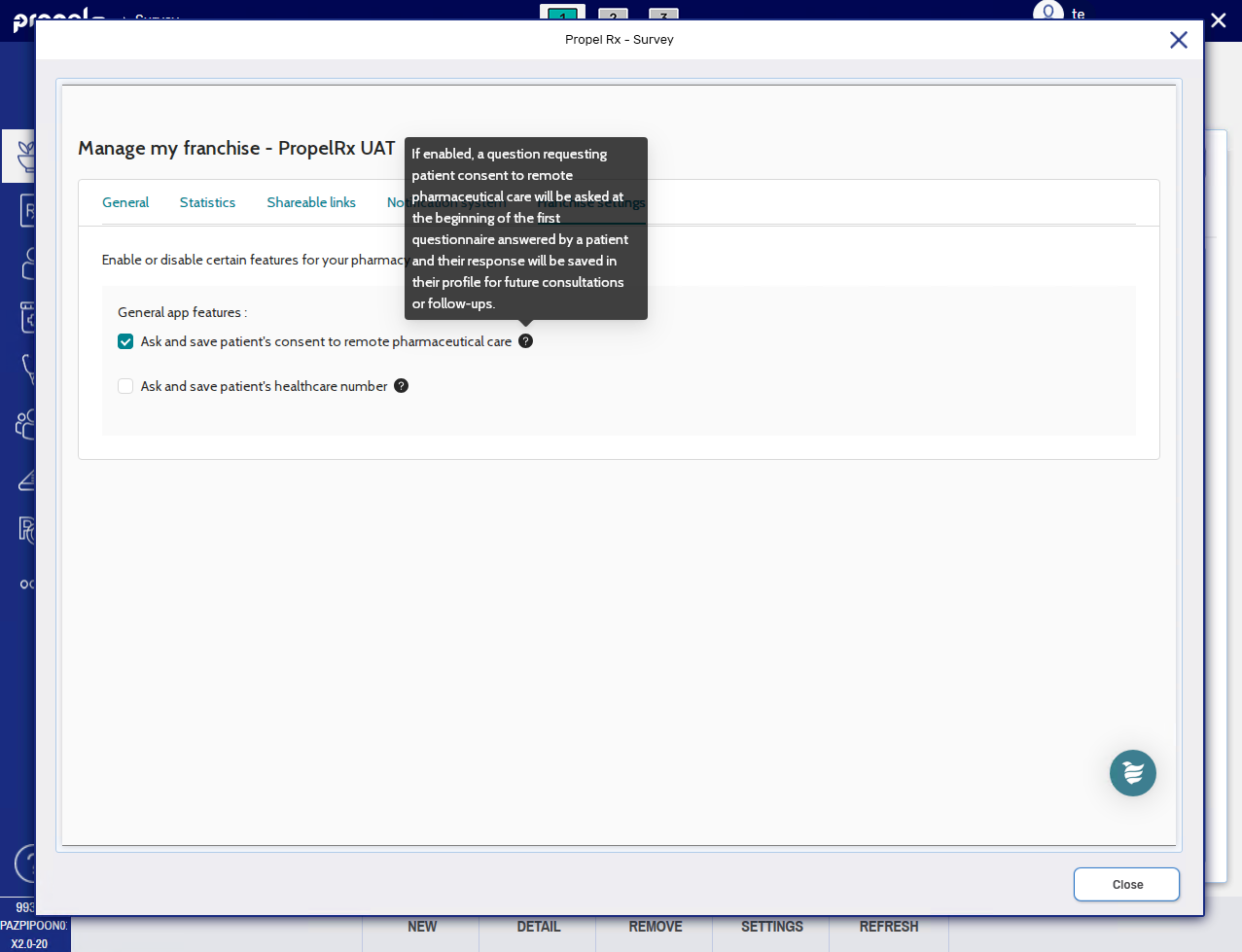
The Franchise settings tab contains certain features that can be enabled or disabled for your pharmacy.
-
Ask and save patient's consent to remote pharmaceutical care - if enabled, the patient is asked to provide consent on their first survey. Consent is stored in the survey site for the patient's future surveys.
-
Ask and save patient's healthcare number - if enabled, the patient is asked to provide their healthcare number on their first survey. The number is stored in the survey site for the patient's future surveys.
Hover over the help icon  to reveal information about each feature.