Managing Messages
This topic is intended for Independent pharmacies only and is not applicable to Rexall pharmacies.
The Messages tile allows you to manage incoming messages and create sub folders to easily organize your inbox.
Use the dropdowns below to learn more.
 Detailing a Message
Once a message as been received, you can view the message by selecting the Detail button.

-
For a PTS communication, a PDF file will open.
Flagging a Message as Priority
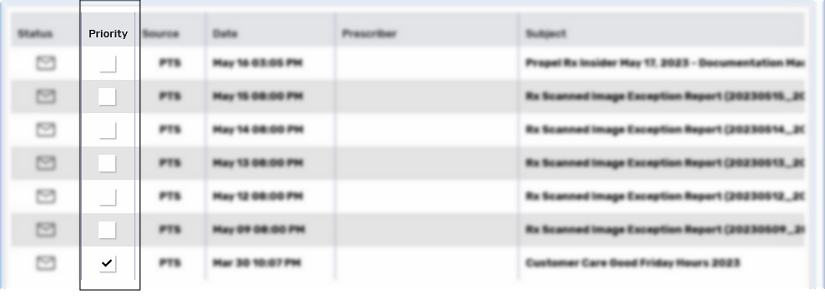
When a message has been received from PTS, you have the option to flag the message as Priority to place it at the top of the grid. If multiple messages are flagged as Priority, they are sorted by date.
To flag a message as Priority:
-
Select the Priority checkbox for the message.
-
Select Refresh. The message is repositioned above non-Priority messages.
Deleting a Message
To delete one or more messages:
-
Highlight one or more messages.
-
Select Delete.

Moving a Message into a Sub Folder
To move one or more messages into a sub-folder of the Inbox:
-
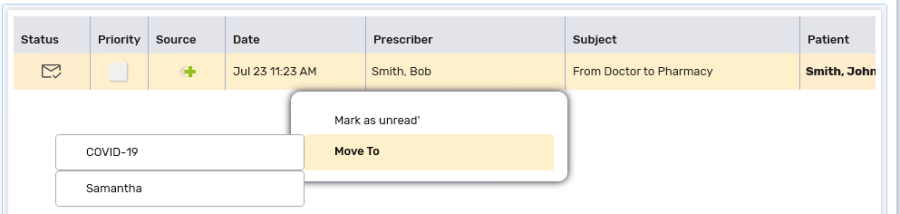
Highlight the message(s) and right-click. A menu opens.
-
Select Move To and then select the sub folder the message should be placed.
For information about creating a new sub-folder, see Creating a New Inbox Sub Folder.
Creating a New Inbox Sub Folder
Sub folders can only be created for the Inbox.
To create a new sub folder:
-
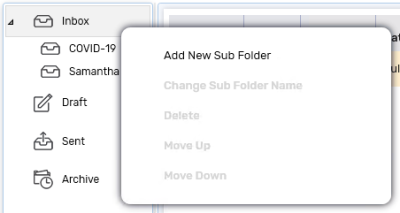
Right-click Inbox. A menu opens.
-
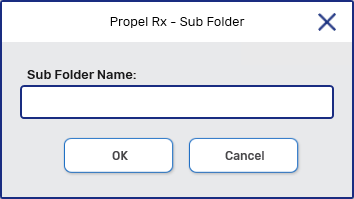
Select Add New Sub Folder. A prompt appears.
-
In the Sub Folder Name field, enter the name of the sub folder.
-
Select OK. The sub folder appears under the Inbox.