What's New in Propel Rx 1.4
Please see below for fixes and enhancements included in the Propel Rx 1.4 release.
Fixes
 Attachments and Scanning
-
When you reauthorize a prescription on a patient's Profile that was on hold, the attachment for the previous hold prescription should not appear in Technical Validation.
-
In British Columbia, Batch scanned documents should save in colour.
Automated Dispensing
-
Performance has been improved for the following aspects related to Central Fill processing:
-
When the Workflow tile is refreshed
-
When prescriptions are sent to Central Fill from the Compliance Automated Packaging window
-
Drug and Mixture
-
The Drug Form field in the Drug Folder and Drug Search window should be arranged alphabetically. When you type a drug form into the field, results beginning with the drug form are shown.
Groups and Batching
-
The Select All/Deselect All buttons should apply to all prescriptions loaded in the Batch Profile window and not just the ones in the current view.
-
When applying more than one filter in the Batch Profile window, highlights on rows should be retained in between filters.
Labels
-
Auxiliary labels should print for each thermal Vial label.
-
Auxiliary labels should print on owe balance labels.
Patient Centre
-
On an iPad, when the prescription e-verification window is closed or the Back button is selected, the prescription lock should be removed.
-
When a DUR is added from Patient Centre, the Performed On Date should appear for the DUR on the Patient Profile.
Patient and Prescriber
-
Highlights applied before and after filtering on the Patient Profile should be retained after the filter is cleared.
POS Integration
-
When an AR prescription is Amended, a duplicate charge should not send to POS.
PrescribeIT®
-
PrescribeIT® prescriptions should not be scaled to 50% when printed.
-
Doctors with last names containing a space should be searchable in PrescribeIT®.
-
If an authorization request for a non-PrescribeIT® prescription is generated from Rx Detail and sent via PrescribeIT®, you should be able to link the renewal request received from the prescriber to the existing prescription chain. This can be achieved through the ReAuth button in the Intake > Profile window or the Duplicate Checking prompt.
-
Cancel requests received from PrescribeIT® should appear with a Priority Ready Time on the Workbench.
-
When a prescriber sends a Clinical Communication without a patient specified, the message should display in Propel Rx.
-
When an authorization request is sent via PrescribeIT® for a synced patient and the prescriber sends a Denied or Under Review response, the patient should not appear as unsynced when the response is received in Propel Rx.
-
When a user responds to a PrescribeIT® message on behalf of the original prescriber, the user and their designation should appear when the following responses are opened in Propel Rx:
-
Clinical Communication - the user appears below the Prescriber field.
-
Denied or Under Review Authorization Request Response - the user appears in brackets beside the prescriber's name.
-
-
When a Clinical Communication is sent for an unsynced patient, the response from the prescriber should be mapped to the correct patient in Propel Rx.
prescription
-
When Compliance prescriptions are queued, a prompt now appears asking if a complete label set should be printed. This is the same prompt that appears when Compliance prescriptions are filled.
-
The markup should not be automatically zeroed when the MI intervention code is added manually.
-
The tabbing order in the Claim Summary window has been updated to reposition OK before Refuse.
-
The Drug Interchangeables window should not appear in Rx Detail when Refilling a prescription for a non-brand, non-primary DIN if Patient, Prescriber, or Pharmacist's Choice is selected as the Reason for using the DIN.
-
All ingredients in a mixture appear in the Owe Balance window regardless of the Supply flag if one or more ingredients in the mixture is Monitored.
-
The owe indicator should appear in the Parked Rx tile for prescriptions that are parked with the Insufficient Inventory reason.
-
The SIG in Technical Validation and Clinical Review should always display in English.
-
The Performed On Date for a prescription should be updated when the prescription is Discontinued.
-
When a drug is entered in the Intake window and the prescription is added to the Workbench, you should be able to change the drug in Rx Detail when the prescription is processed.
-
In Manitoba, an escaped prescription should not appear on the DPIN profile.
-
In Alberta, a Product Validation Prompt should not appear when a new or reauthorized prescription is billed to Alberta Blue Cross.
Reports
-
Mixture Folder notes that are flagged to print should appear in the Other Notes section of the Mixture Breakdown Report.
-
The Mixture Breakdown Report should print automatically after a mixture prescription is packaged.
Enhancements

 Clinical Notes in the Patient Folder
The Clinical History display in the Patient Folder Clinical tab has been modified to improve performance when loading Patient Folders. A maximum of 90 days worth of clinical notes, including Dialogue, appear in the Clinical History grid.
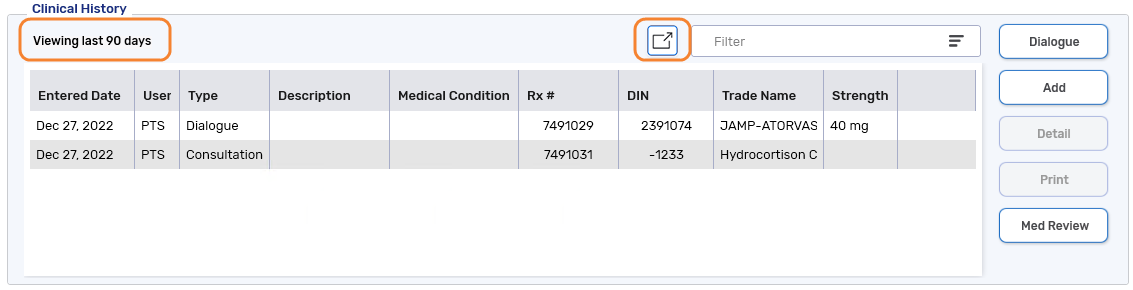
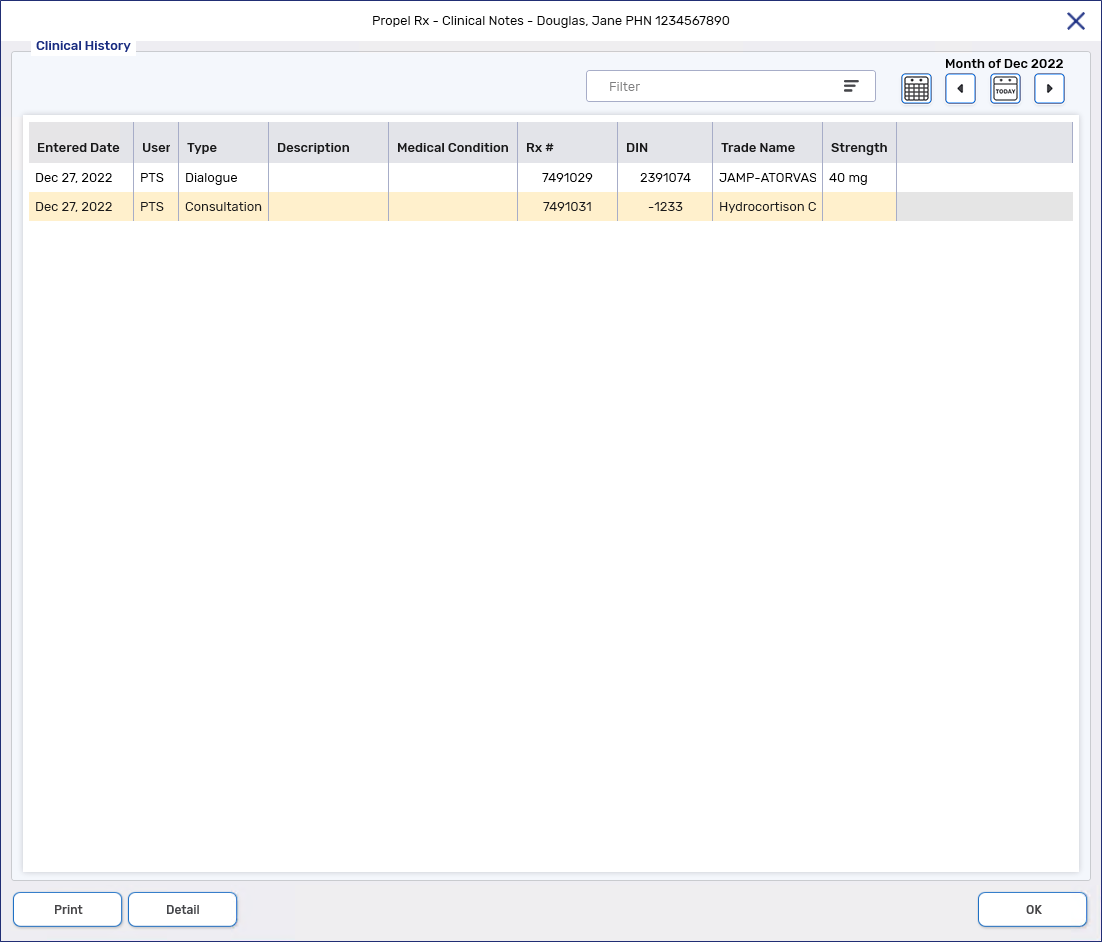
To view additional records, an expander button  can be selected in the Clinical History section next to the Filter field. Once invoked, the Clinical Notes window opens and displays the clinical notes for the current month.
The clinical notes display can be modified by using the following field/buttons:
-
Filter = can be used in combination with the calendar controls to filter clinical notes based on the text entered
-
 = displays the clinical notes completed today
 -
 = opens the Calendar window with options to view clinical notes by day, week, or month
 -
 = displays the clinical notes for the previous month
 -
 = displays the clinical notes for the next month
From the Clinical Notes window, records can be detailed and non-Dialogue records can be printed.
Compliance Reports
Compliance reports (Compliance Blister Packaging, Compliance Dosett Grid, Compliance Preparation Log) no longer generates based on the days supply entered in a prescription. Instead, the report uses the following information from the Rx Detail Administration Details window to determine if and how medications appear on the report:
-
Frequency
-
Passtimes/Admin Times - refer to Table 2 for the conversion of Admin Times to Passtimes on the report
Table 2. Admin time mapping for the Compliance reports.
Breakfast Noon Supper Bedtime 00:00 - 9:59 10:00 - 14:59 15:00 - 20:59 21:00 - 23:59 -
Start Date - medications appear on the report if the Start Date precedes or is equal to the Start Date set in the report criteria
-
Stop Date - medications do not appear on the report beyond the date specified
Dialogue for Multiple prescriptions
These changes do not apply to Dialogue in Patient Centre.
Completing Multiple Dialogues with No Notes
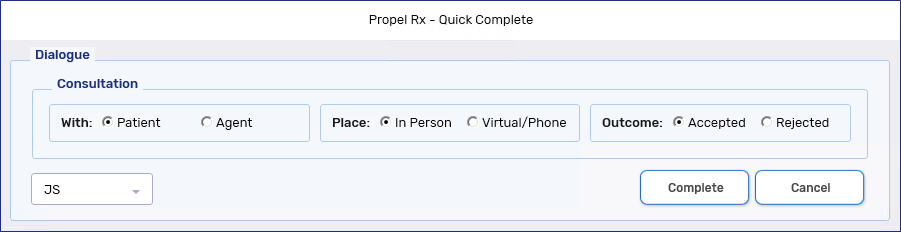
A Quick Complete button has been added to the Dialogue tile. The purpose of this button is to allow Dialogue to be completed quickly, without entering any notes.

When one or more prescriptions are highlighted and Quick Complete is selected, the Quick Complete window opens. The window is a condensed version of the existing Dialogue window and contains the following fields:
-
Consultation With
-
Consultation Place
-
Consultation Outcome
-
User
Notes can be added to the Dialogue later if needed by detailing the Dialogue in the Patient Clinical Notes.
Completing Multiple Dialogues with Notes
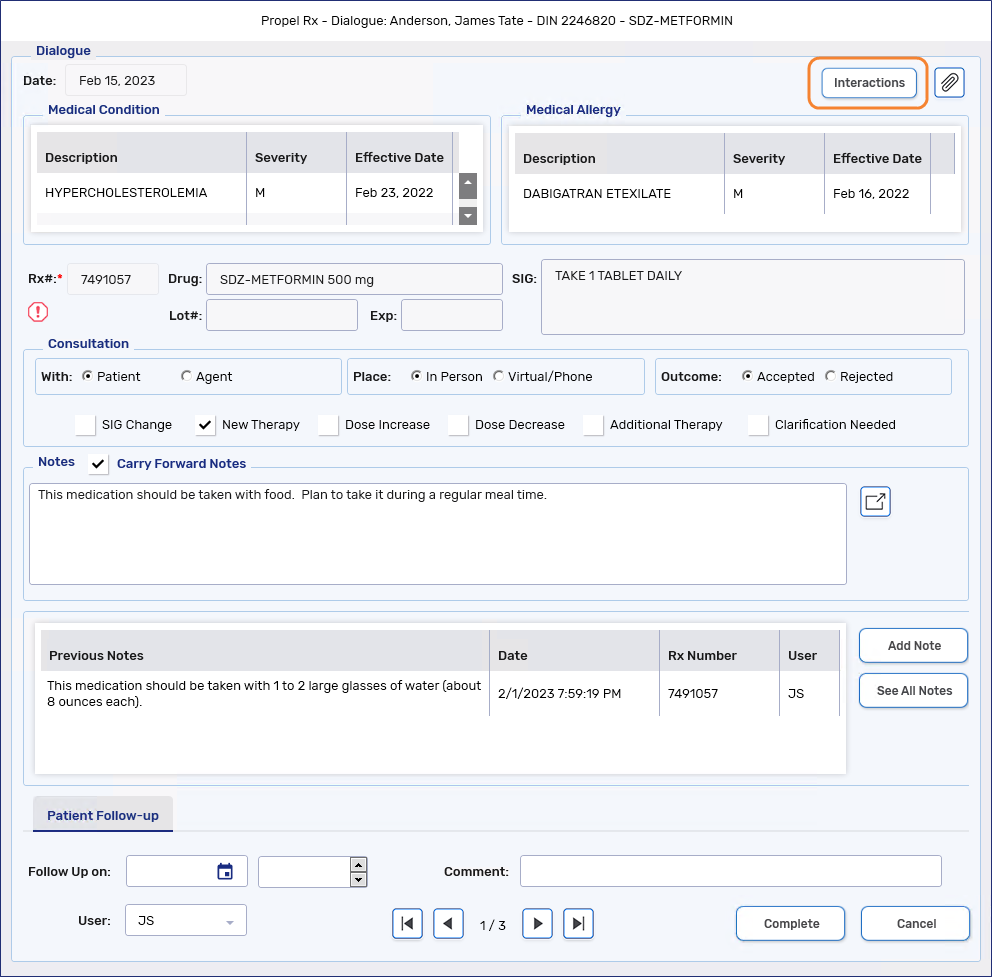
The Complete button is now enabled when more than one prescription is highlighted in the Dialogue tile. This allows multiple Dialogues to be completed with the opportunity to enter notes. Upon selecting Complete, the Dialogue window opens with pagination. Selecting the left  and right
  arrow buttons at the bottom allow the user to toggle between different Dialogue records. When completed Dialogue is detailed from the Patient Profile or Clinical Notes, the same buttons are used to toggle between multiple patient follow-ups if they exist.
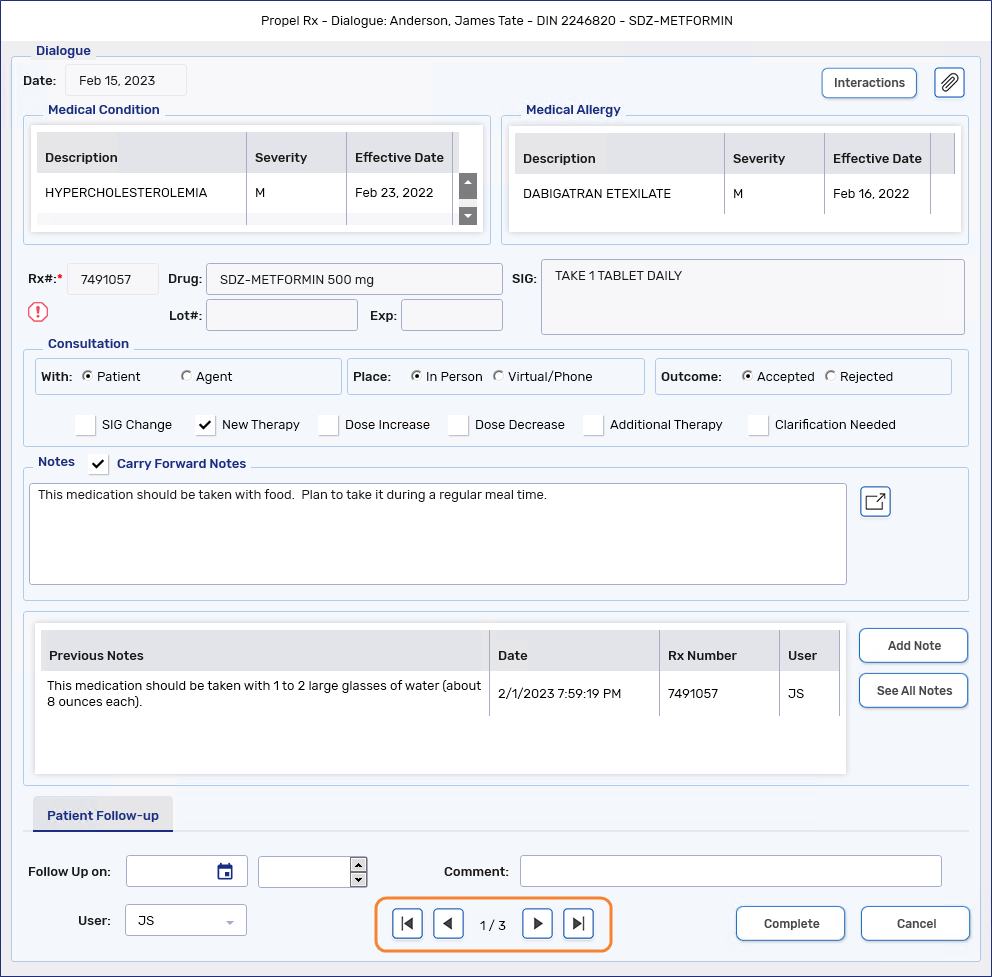
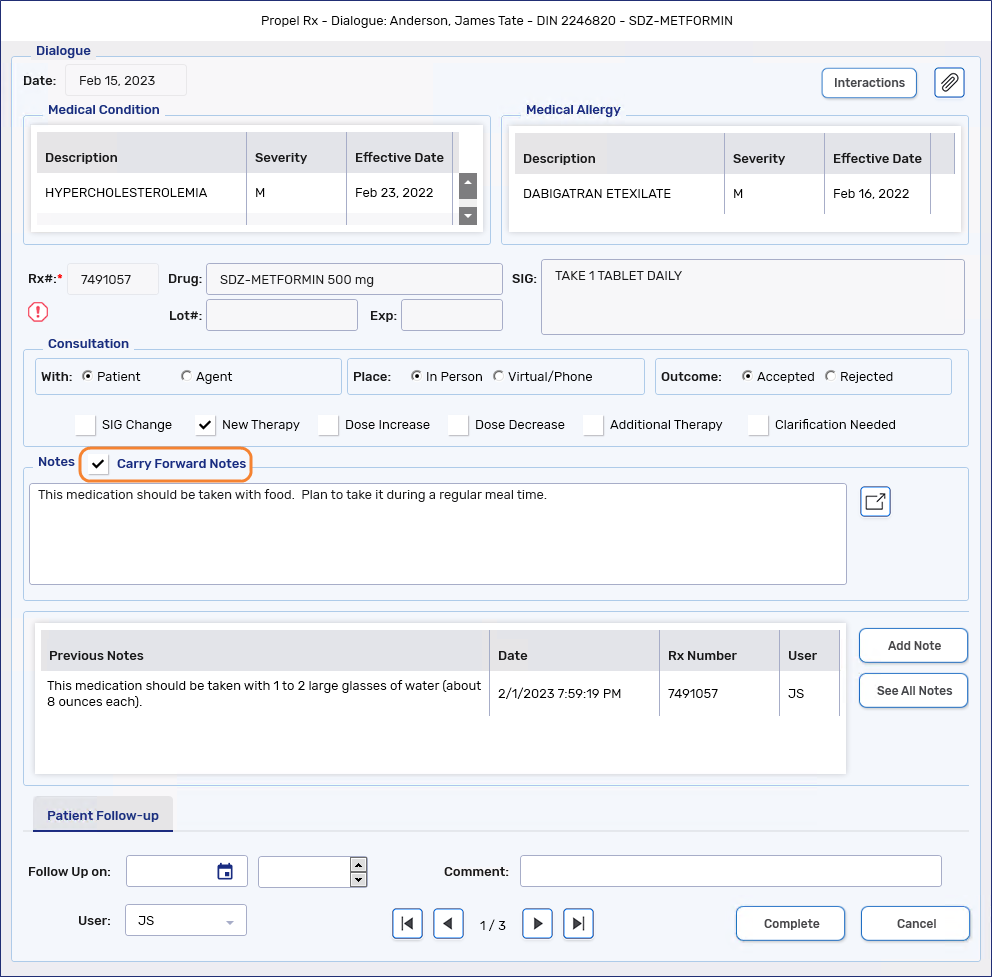
A Carry Forward Notes checkbox has been added to the Notes section for the first record in the Dialogue window. By default, this checkbox is OFF. The purpose of this checkbox is to copy notes entered in the Notes field for the first Dialogue record to the remaining records loaded in the window.
-
If the checkbox is ON, the Notes field becomes disabled for all Dialogue records in the window, except the first. Notes that are specific to a prescription can still be added by selecting the Add Note button in the Previous Notes section.
-
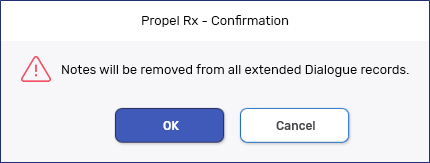
If the checkbox is turned OFF when previously ON and notes are entered, a prompt alerts the user that the notes from all Dialogue records except the first will be removed. Selecting OK to the prompt removes the notes as indicated and turns off the checkbox. Selecting Cancel to the prompt aborts the action, no notes are removed, and the checkbox remains ON.
Dialogue for Methadone Carries (Ontario Only)
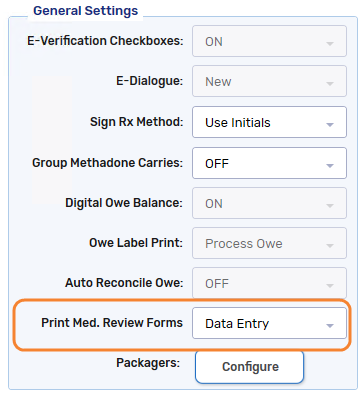
When Group Methadone Carries is ON in Workflow Preferences, only the Dialogue for the witness dose appears in the Dialogue tile. Dialogue for methadone carries may be carried over from the witness dose prescription depending on the E-Dialogue preference.
-
When E-Dialogue is set to New, only the Dialogue for the witness dose appears in the Patient Clinical Notes. Only the witness dose e-File copy has the Dialogue Completed On and By fields populated.
-
When E-Dialogue is set to All, the Dialogues for the witness dose and carries appear as separate rows in the Patient Clinical Notes. The Dialogue for the witness dose is copied to all carries. The e-File copies of the witness dose and caries have the Dialogue Completed On and By fields populated.
Dialogue Not Required
This section is not applicable to British Columbia pharmacies.
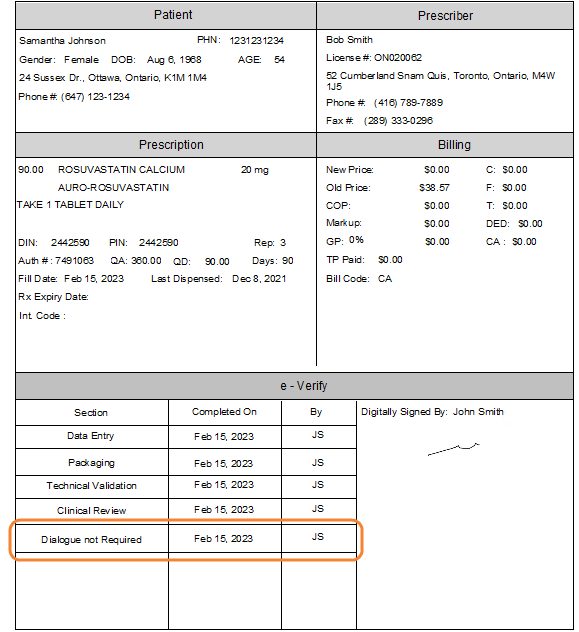
The user who selected Not Required for a dialogue and the date they performed the action is recorded on the e-File copy.
Dialogue & Interactions
An Interactions button has been added to the Dialogue window. The purpose of this button is to access interaction details to guide patient counselling. When this button is selected, the Interaction Detail window opens and displays the information that appeared when processing the prescription in Rx Detail. From this window, the interactions can be printed using the Print button.
Select Alt + I to quickly invoke the Interactions button.

 Owe Balance
Owe Balance Window
The On Hand has been added to the Owe Balance window.
Owe Balance Indicators
An owe balance indicator prints on the thermal Privacy label for owe balances.
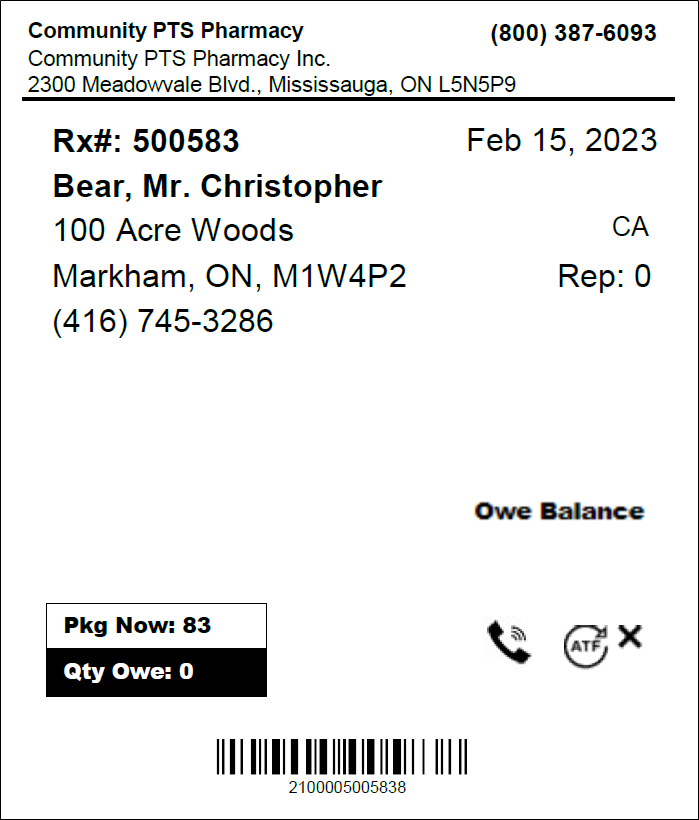
 appears in the following locations:



 appears if a drug is flagged as Workbench
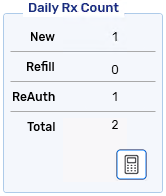
The count for reauthorized prescriptions has been added to the Daily Rx Count on the Workflow tile.