Detailing a Report Group
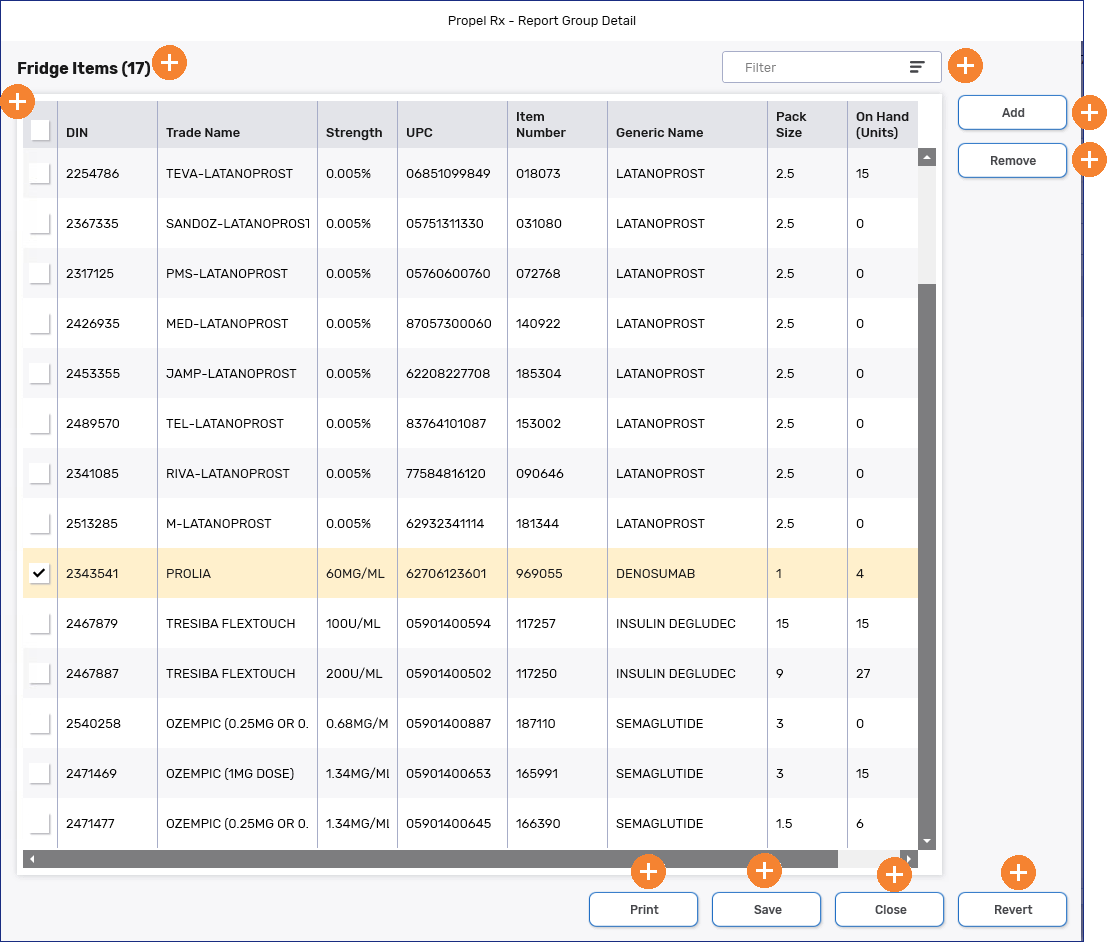
Each report group has a detailed view that shows all records currently included in the group. From this view, you can add new records or remove existing ones from the report group.
To detail a report group:
-
Do one of the following:
-
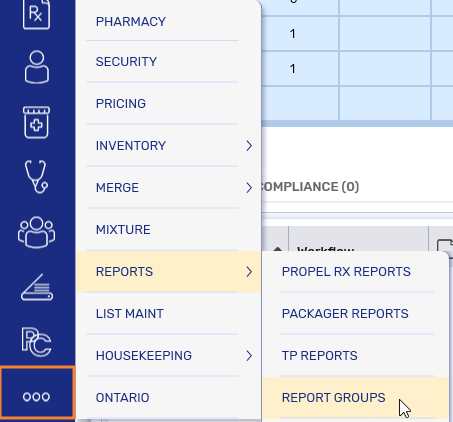
Select More (...) > Reports > Report Groups.
-
Open a report and select the Report Groups button at the bottom.

 Report Groups button is missing
A small subset of reports open in the old Propel Rx Reports application, which does not have the Report Groups button. For these reports, access report groups from the More (...) menu.
The Report Groups window opens.
-
-
Select the report group you want to detail.
-
Select Detail.
Report Group Detail Window Overview
By default, the Report Group Detail window is sorted numerically by DIN in ascending order. To update the sort order, select the header for the column you want to sort by. Columns can also be rearranged by clicking and dragging the column header.
Sorting and column placement will revert to their defaults once the Report Group Detail window is closed.
To learn more about the Report Group Detail window, select the expander icons  in the image below.