Adding a Report Group
Report groups help you organize a specific set of drugs, prescribers, or patients, so you can run reports more easily and consistently. Instead of selecting records one by one each time you run a report, you can create a report group once and reuse it whenever needed.
For example, you might create a report group for:
-
Narcotics, controlled drugs, and targeted substances for cycle counts
-
Prescribers for trend analysis
-
Patients for generating MARs
Report groups are shared with all users in the Propel Rx database. For pharmacy owners with multiple stores, report groups must be set up per location.
Any user with full access to reports in the Security Administration Facility window can add, edit, or remove report groups.
To add a report group:
-
Do one of the following:
-
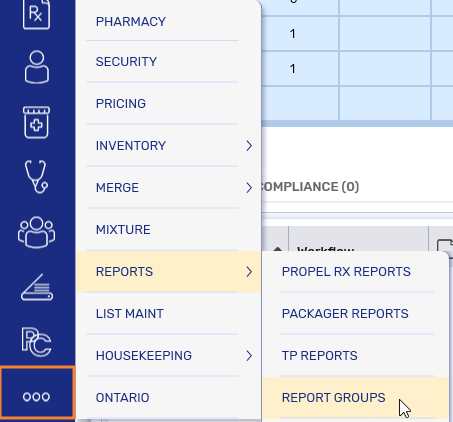
Select More (...) > Reports > Report Groups.
-
Open a report and select the Report Groups button at the bottom.

 Report Groups button is missing
A small subset of reports open in the old Propel Rx Reports application, which does not have the Report Groups button. For these reports, access report groups from the More (...) menu.
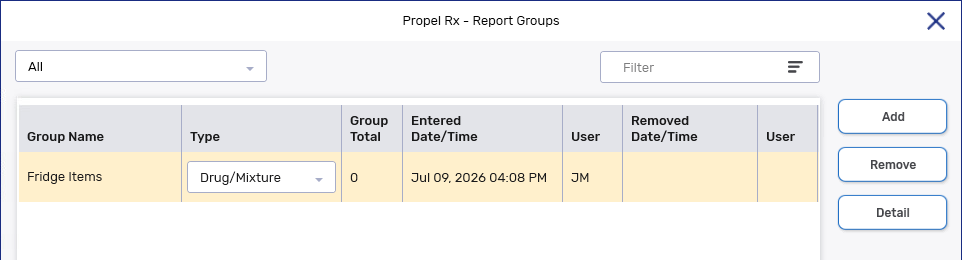
The Report Groups window opens.
-
-
Select Add. A new row appears in the list.
-
In the Group Name field, enter a name for the report group. You can enter a maximum of 30 alphanumeric and special characters (/, &).
Duplicate group name
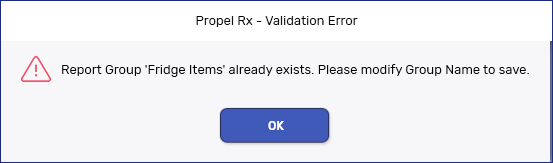
If the group name is already assigned to another report group, upon Save, this prompt will appear. Select OK and modify the name to proceed.
-
In the Type field, select the type of report group based on the type of records you want to group together:
-
Drug/Mixture
-
Prescriber
-
Patient
-
-
Select Save.
-
The date timestamp and user initials are recorded for the report group.
-
The group total will display as 0 until a record is added the group.
-
What's Next?
After creating a report group, you can detail the group and add drug, mixture, prescriber, or patient records. For more information, see Editing a Report Group.