EHR Response Windows
Select the applicable tab to learn about EHR response windows in your province.
TAC/TDU Response Window
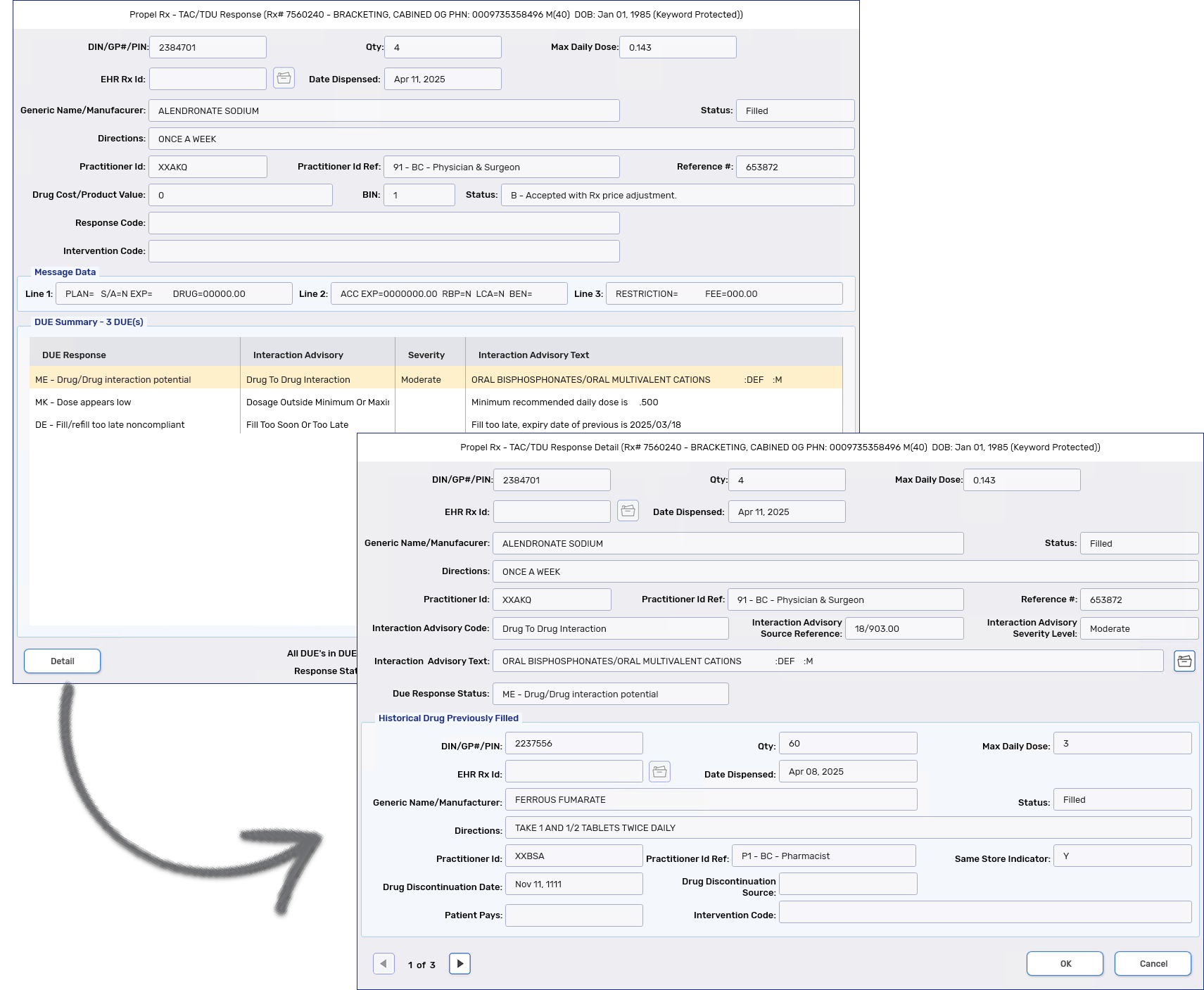
The TAC/TDU Response window houses information that's returned from the EHR after a prescription or its dispense has been submitted to the EHR. It contains two types of information:
-
TAC - claim information
-
TDU – drug utilization evaluation (DUE) information which can include:
-
Drug-to-drug interactions
-
Drug and Adverse Drug Reaction (ADR) interactions
-
Minimum or maximum dosage evaluations
-
Duplicate ingredient or therapy
-
Compliance evaluations (i.e., if the Refill occurred late)
-
The top half of the window includes details of the drug being dispensed currently. The bottom half of the window includes DUE information for the interacting drug that was dispensed previously. Depending on what’s returned by the EHR, some or all fields in the TAC/TDU Response window are populated.
To view additional information about a DUE, select the DUE and then Detail.
Viewing Requirements
-
The TAC/TDU Response window must be viewed for each prescription processed.
-
When batching, the prescriptions will not be complete until the TAC/TDU Response window is viewed.
-
All DUEs must be viewed using the scroll bar, if applicable. When finished viewing all DUEs, the OK button is enabled for you to accept and close the TAC/TDU Response window.
Accessing the Rx Authorizations Profile - Detailed Prescription View
When an EHR Rx ID is returned by the EHR, the folder button  adjacent to the field becomes enabled. Users can select this folder button
  to open the Rx Authorizations – Detailed Prescription view for the prescription. However, if the EHR does not return an EHR Rx ID, this button will be disabled.
To view detailed prescription information from the TAC/TDU Response window:
-
Fill or place a prescription on Hold. The TAC/TDU Response window will appear if claim and/or DUE information is returned.
-
Select the folder button
beside the relevant EHR Rx Id field. The top EHR Rx Id pertains to the current prescription, while the bottom one pertains to the interacting prescription. -
The EHR Access Reason window opens. Choose a reason for accessing the data and provide optional comments.
-
Select OK.
-
If the query is successful, the Rx Authorizations Profile – Detailed Prescription view opens.
-
A record is added to the Patient Folder History tab to document that the EHR Profile was accessed. The User, Event (EHR Profile), Activity (Access Reason), and any Comments (name of the profile requested and reason entered) are recorded.
-
Sample DUEs
 Duplicate Therapy DUEs
When a prescription is created or dispensed on the EHR, a duplicate therapy DUE can be returned if there is a match between the current prescription and an existing prescription for the same PHN, DIN, pharmacy, and transaction date. The management of a duplicate therapy DUE differs depending on whether you're filling the prescription or placing it on Hold.
When a duplicate therapy DUE is returned after filling a prescription (i.e., submitting a dispense), the prescription will not be accepted by the EHR until the duplication is addressed, such as entering an intervention code.
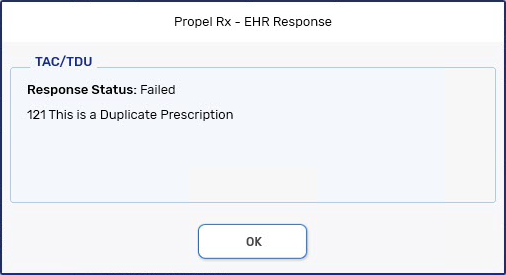
When a duplicate therapy DUE is returned after placing a prescription on Hold (i.e., submitting a Create only), the warning only requires acknowledgement by selecting OK in the TAC/TDU Response window to proceed.
