NMS Frequently Asked Questions
This section is applicable to Ontario pharmacies only.
 The prescriber uses our pharmacy for both personal and office use prescriptions. How should these prescriptions be differentiated?
In such a case, two Patient Folders will need to be created in Propel Rx:
-
One profile for the prescriber's Office Use prescriptions.
-
Second profile for the prescriber's personal use prescriptions in the same way as any other retail patient, using any of the approved identity cards.
Can I submit claims to NMS using the Prescriber ID 99 (Other) and the prescriber license number 99999?
No. NMS will reject the transaction. A valid license number must be used as well as its corresponding Prescriber Type.
The following Prescriber Types are valid:
-
College of Physicians and Surgeons of Ontario
-
Royal College of Dental Surgeons of Ontario
-
College of Chiropodists of Ontario
-
Carrier Designated Out of Province ID
You must use specific license numbers for out of province prescribers when submitting to NMS. For a list of license numbers (Prescriber IDs), see the Ontario Drug Programs Reference Manual.
-
College of Midwives of Ontario
-
Ontario College of Pharmacists
-
College of Optometrists of Ontario
-
College of Nurses of Ontario
How do I submit a claim for a patient that is from outside the country but has a prescription written by a Canadian doctor?
An out of country patient has a standard identity code and identity number. You may wish to record the patient's identification in the Patient Folder Notes tab for reference purposes.
To enter NMS information for an out of country patient:
-
Open the Patient Folder.
-
Select the Third Party tab.
-
Select ONG - Out of Country Residents with Approved Identification from the Identity Code dropdown list. The PHN/Identity # is automatically set based on your selection.
-
Select Save.
Are there any situations where Propel Rx would not sent a narcotic or controlled medication to NMS?
Yes. There are 4 exceptions:
-
The DIN is not included on the Monitored Drugs List (MDL).
-
The Status of the Patient Folder is Hospitalized.
-
The patient is in a Correctional Facility Group (Group Type = Correctional Facility).
-
The prescriber is a Veterinarian.
Will NMS reject a transaction if the birth date is wrong, and I'm not using the Ontario health card as the identification?
No. NMS will not reject the transaction due to an invalid birth date when other forms of identification are used.
Will NMS reject a transaction if the health card version code is missing?
No. The NMS transaction will not be rejected, however it is best practice to include the version code, if one exists, in the PHN/Identity # field as part of the health card number. If you are also entering the health card number in the PHN field of the Patient Folder Main tab, the version code should also be entered.
What should I do if NMS is offline?
The NMS does not adjudicate financially, nor does it prevent you from dispensing the prescription. You may fill and bill the prescription today, and send it to NMS at a later date. You do not need to Rebill or Refuse the prescription if the NMS is offline. The prescription can be submitted to the NMS anytime within the 365 days of the fill date.
Refer to Failed and Rejected NMS Prescriptions to learn how to submit a prescription to NMS after the original fill date.
What is the process to bypass the NMS missing information prompting in Rx Detail if I don't have the mandatory pieces of information, but still want to fill the prescription?
To bypass the prompting for the Birth Date, Identity Code, and PHN/Identity #, select the OK button in the Narcotics Monitoring System prompt without filling in the missing information. This will submit the prescription for financial adjudication and the NMS transaction will be rejected. The prescription will remain in Data Entry until the NMS submission is complete.
Once you have the missing pieces of information, update the Patient Folder and resubmit the prescription to the NMS. For more information, see Failed and Rejected NMS Prescriptions.
Why isn't NM in the prescription's billing codes?
NMS does not adjudicate financially. Therefore, when a prescription is flagged as NMS, 'NM' will not be included in the prescription's billing codes. The NMS flag in the Rx Detail Extended tab identifies if a prescription will be submitted to the NMS. When this flag is ON, the NM claim will be added in the Rx Detail Third Party tab, after Cash.
My store fills prescriptions when we do store-to-store transfers of drugs. Do these prescriptions need to be transmitted to the NMS?
To set the Patient Folder Status to Hospitalized:
-
Search for the Patient Folder that was created for the other store.
-
In the Patient Folder Main tab, select Hospitalized from the Status dropdown list.
-
Select Save.
How do I bypass NMS when filling a prescription for an animal?
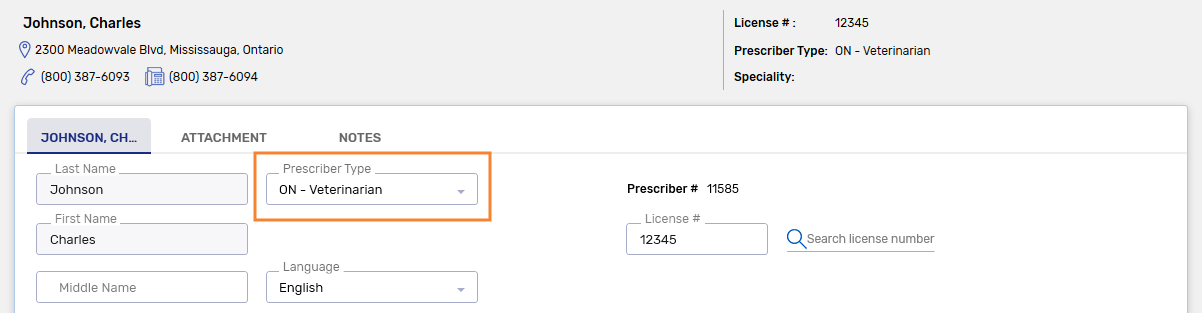
By default, prescriptions processed using a Veterinarian Prescriber Folder bypass NMS automatically. You can designate a prescriber as a Veterinarian using the Prescriber Type field in the Prescriber Folder (e.g., Prescriber Type = ON - Veterinarian).
Should OTC narcotics and controlled substances be submitted to the NMS?
When an OTC drug is on the Monitored Drugs List (e.g., Tylenol #1), a submission to NMS is only required if the drug is prescribed and dispensed. It is not necessary to submit to the NMS if the patient is purchasing the medication over-the-counter without a prescription; in this case, your store should add the drug as a DUR on the patient's Profile, as per best practices.
How can I tell if the NMS claim was successful?
The NM claim in the Rx Detail Third Party tab indicates whether the claim has been adjudicated successfully. As with all Third Party adjudication, the claim status indicates if the submission is Complete, Rejected, Failed, Reversal Rejected, Reversal Failed, or Cancelled.
To access NMS claim information:
-
Open the prescription in Rx Detail.
-
Select the Third Party tab.
-
Select the arrow button
 until you come to the last claim, which will be the NM claim.
If the prescription is an outstanding NMS transaction, the NM claim appears automatically when Rx Detail opens. Prescriptions with outstanding NMS transactions are identified by a red N on the Workbench and Pick Up/Delivery tile.
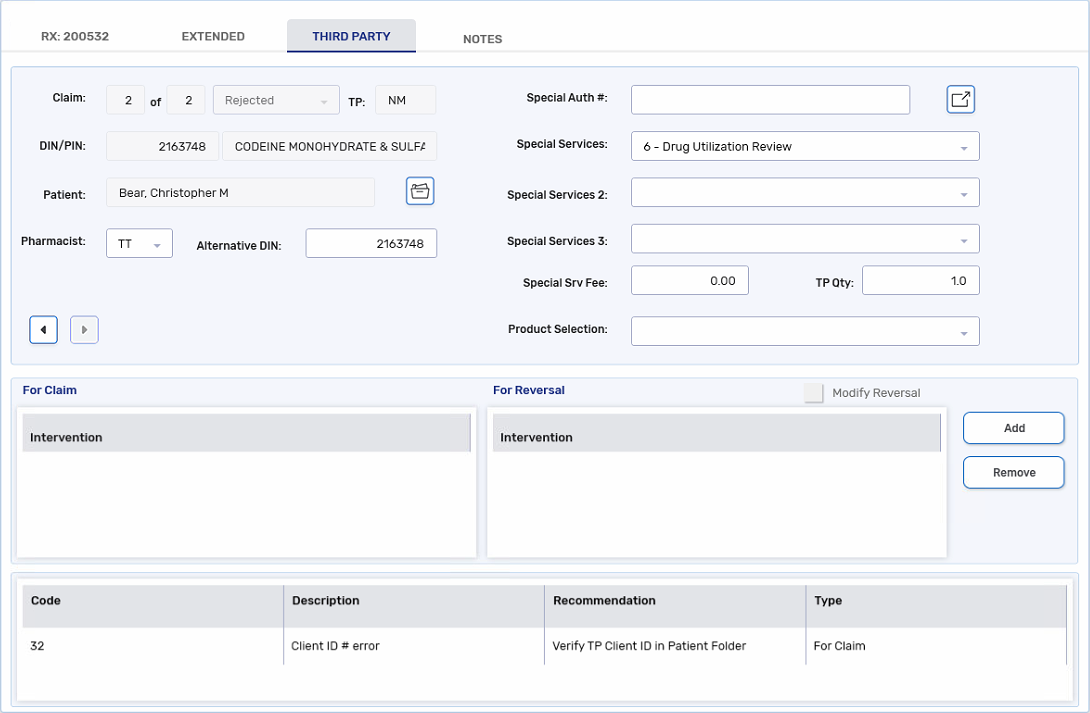
What is the difference between a rejected NMS claim and one that has been completed?
Check the status of the NM claim in the Rx Detail Third Party tab. See How can I tell if the NMS claim was successful for information on how to access the NMS claim information.
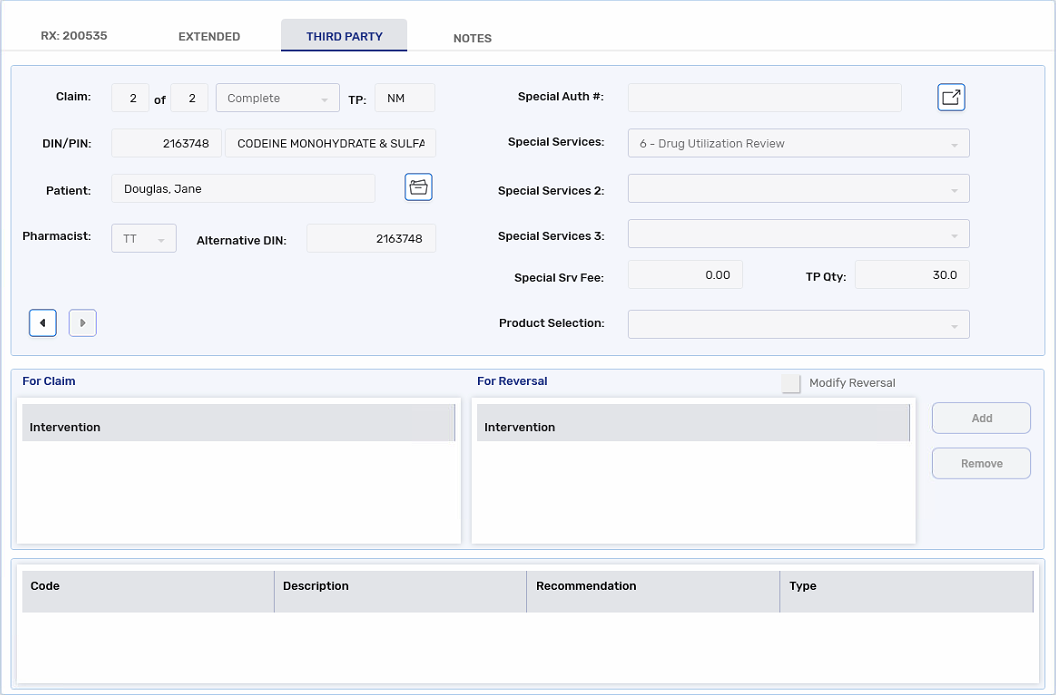
This is an example of a Complete claim that does not require further action. Since the claim status is Complete, the transaction was successfully submitted to NMS. It is possible for NMS to return response messages on Complete transactions; these responses are for informational purposes only.
This is an example of a Rejected claim. Corrective action is required on Rejected transactions based on the response messages returned. Unsuccessful NMS transactions are also identified by a red N on the Workbench and Pick Up/Delivery tile.