Batch Processing NMS Prescriptions
This section is applicable to Ontario pharmacies only.
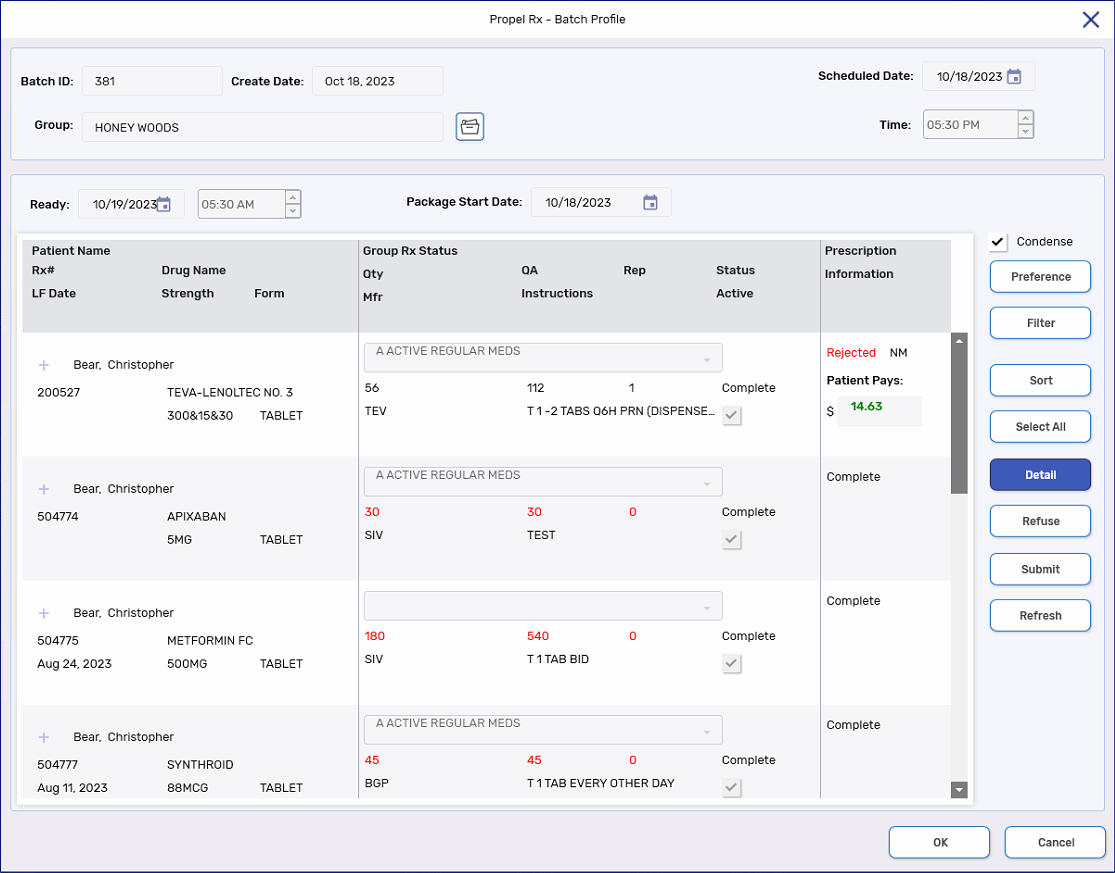
When NMS prescriptions processed as part of a Batch are rejected or failed, in the Batch Profile window, a Failed or Rejected indicator appears under the Prescription Information column.
-
Failed means the transaction did not reach the NMS. Highlight the Failed prescription(s) and then select Submit. The prescriptions will be resubmitted to the NMS.
-
Rejected indicates there was a problem with the prescription due to missing or invalid data. Highlight the Rejected prescription and then select Detail. The Rx Detail Third Party tab opens for the NMS claim. View the response information, make the necessary corrections, and then select Submit.
A prescription will remain in Data Entry until its NMS submission is successful. In a network down scenario only, you have the option to skip NMS in the Rx Detail Third Party tab to advance the prescription in Workflow. For more information, see Failed and Rejected NMS Prescriptions.