Returning to Stock
RTS behaves like a Refuse and can be used for prescriptions with a Complete or Amend status. RTS offers an added convenience as Privacy labels from the pickup bin can be scanned using a handheld barcode scanner. When scanned in this manner, Propel Rx automatically populates the prescription number and enters a forward slash (/) between numbers. This is useful if your pharmacy needs to clean up their pickup bin.
To return to stock:
-
Select Correct from the Patient Profile, Workbench, or any Workflow window after Data Entry.
-
If Correct is selected from the Workbench, enter the patient's name or prescription number.
Multiple prescription numbers can be separated by a forward slash (/). If you scan the Privacy labels using a handheld barcode scanner, the prescription number and forward slash are automatically entered.
-
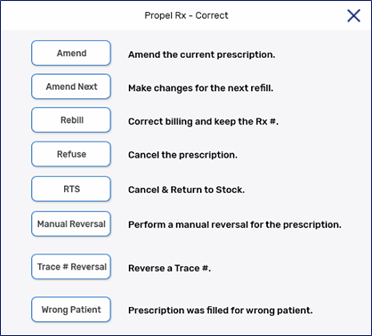
In the Correct window, select RTS.
-
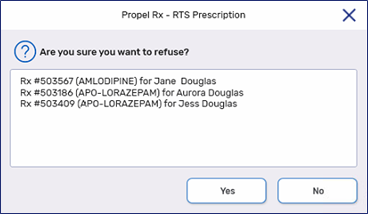
A prompt appears asking you to confirm if the prescription(s) should be returned to stock. Select Yes.
-
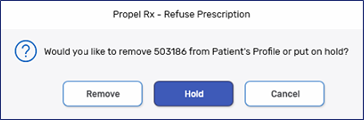
If the prescription is a first fill, a prompt appears with the options to remove the prescription from Profile or place it on hold. Select Remove or Hold.
-
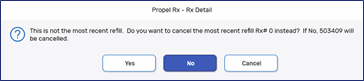
If the prescription is not the most recent fill, a prompt appears asking you to confirm if the most recent fill should be refused. Select Yes or No.
-
The prescription is cancelled and inventory is added back if the drug is Monitored.