EHR Consent
Patient consent must be entered to access an EHR Profile with restricted access (i.e., masked). If an EHR Profile is masked, information can only be retrieved:
-
If expressed consent from the patient or a health professional has been obtained for a specified period.
-
In emergency circumstances and the patient is unable to provide consent.
-
If dangerous use of prescription drugs is suspected.
Consent is provided for a specific user and only extends for the period specified in the EHR Consent window. Access is tracked in the Patient Folder History tab.
Use the dropdowns below to learn more information.
 Entering Consent in the Patient Folder
Prior to completing any work for a patient that has a masked Profile, consent that has been given should be recorded in the Patient Folder.
To record patient consent:
-
Open the Patient Folder.
-
Select the Programs tab.
-
Select EHR Consent. The EHR Consent window opens.
-
Select the Consent checkbox.
-
Enter any other details related to the consent.
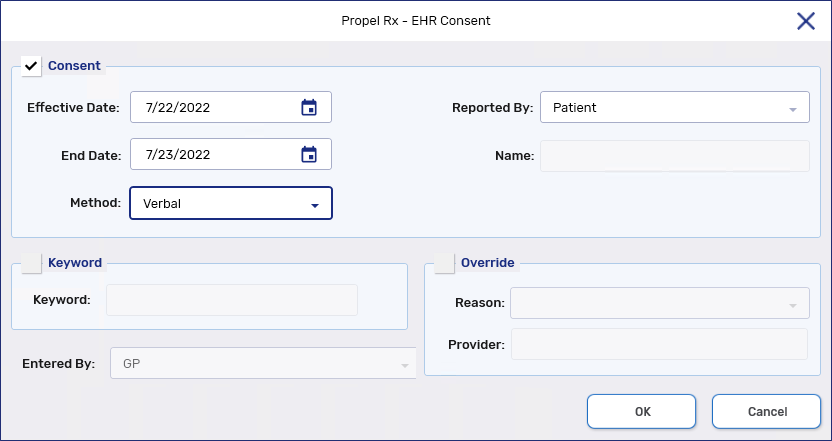
-
Select OK.
Entering Consent in the Detected Issues Maintenance Window
When a prescription is being processed, consent can be entered from the Detected Issues Maintenance window .
To record patient consent:
-
Process a prescription from the Workbench or Patient Profile.
-
In the Detected Issues Maintenance window, select EHR Consent. The EHR Consent window opens.
-
Select the Consent checkbox.
-
Enter any other details related to the consent.
-
Select OK.
-
Continue filling the prescription.
Overriding Consent
If a patient is unavailable to provide you with consent to access their EHR Profile, you can use the Override feature on a one-time, transactional basis.
Professional judgement must be used when overriding consent. Overrides are recorded on the DIS and the user who performed the override must provide an explanation as to why consent was overridden. Ensure to document the rationale for future reference. The ability to override is only available if an attempt to view the patient's EHR Profile was made and not permitted.
To override consent:
-
Open the Patient Folder.
-
Select the Programs tab.
-
Select EHR Consent. The EHR Consent window opens.
-
Select the Override checkbox. The fields within the Override section become enabled.
-
Select a Reason.
-
Search for and select the provider.
-
Select OK. The patient's EHR Profile is displayed if the override is accepted by DIS.
Revoking Consent
To revoke or end consent, a new consent must be created with an End Date that is in the past.
To revoke/end consent:
-
Open the Patient Folder.
-
Select the Programs tab.
-
Select EHR Consent. The EHR Consent window opens.
-
Select the Consent checkbox.
-
In the Effective Date field, enter a date in the past.
-
In the End Date field, enter the same date as in step 5. This indicates that the consent has ended.
-
Select OK to send the consent message to DIS.