PhotoRx
This topic is part of the Be Well™ section that is intended for Rexall pharmacies only. This topic is not applicable to independent pharmacies.
Once a patient's Be Well™ account is linked to their Propel Rx Patient Folder, new prescriptions and refill requests can be transmitted electronically to the pharmacy by a patient or a Caregiver registered for a Person in Care.
For new prescriptions, patient's and Caregiver's can provide a photo of the prescription with the PhotoRx feature. These prescriptions are identified in the Data Entry queue with a camera icon  .
.
New prescriptions for Narcotic, Controlled and Targeted substances (NCTs) received through the Be Well™ app's PhotoRx feature cannot be processed without the actual prescription. Contact the patient if an NCT was submitted and inform them that the original prescription must be brought to the pharmacy before the prescription can be processed.
Prescriptions sent through PhotoRx are not eligible for delivery. The patient, Caregiver or Agent must come to the pharmacy with the original prescription to pickup.
Processing a PhotoRx
Complete the following steps when processing a prescription sent through the Be Well™ app's PhotoRx feature:
-
Fill the prescription as per the usual process.
-
Attach a copy of the prescription and the verification checklist to the prescription
-
At pickup, use the verification checklist to validate the patient information and use it to verify against the original prescription.
PhotoRx Prescriptions
Workbench
When a PhotoRx is received, it displays in the Data Entry queue with a PhotoRx icon.

Intake Window
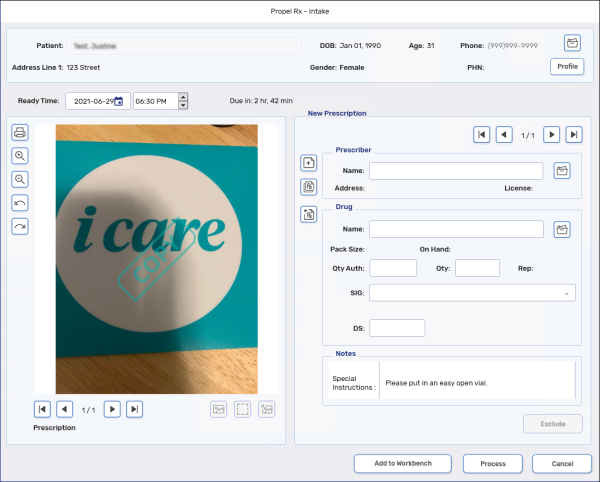
When a PhotoRx prescription is opened in the Intake window, the photo of the prescription attached displays on the left side of the window.
Any special instructions from the patient appears in the Notes section.
Rx Detail
When a PhotoRx is opened in Rx Detail, any special instructions provided by the patient display in the Alerts section.
