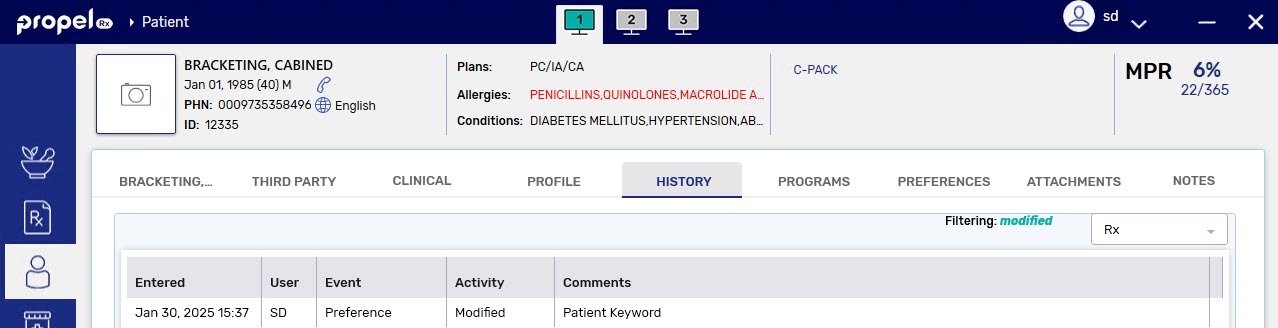
Updating a Patient Keyword
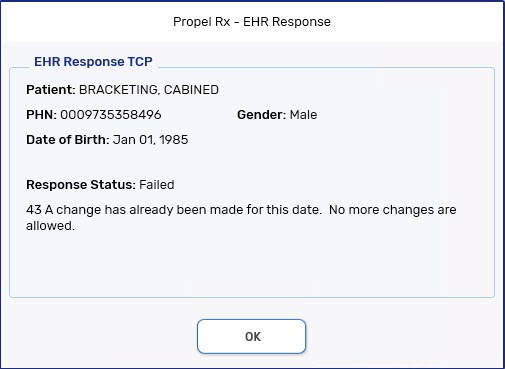
A Patient Keyword can only be updated once a day. An error is returned by the EHR if you attempt to update the keyword more than once a day.
 Role Type Restrictions
Only specific role types are allowed to enter, update, or remove Patient Keywords. These include:
-
Pharmacist
-
Pharmacy Manager
-
Relief Pharmacist
-
Pharmacy Student
For all other role types, the Patient Keyword field is disabled.
To update a Patient Keyword:
-
Open the Patient Folder.
-
Select the Programs tab.
-
Ensure the keyword consent is set to Accepted or Declined.

-
Select Update Keyword. The EHR Keyword Update window opens.
-
Enter information in the following fields:
-
Current Keyword - this is pre-populated if a keyword was previously entered.
This field can be left blank if the patient didn’t have a keyword previously but wants to add one.
-
New Keyword - enter the new keyword.
-
Confirm Keyword - re-enter the new keyword.
The keyword requirements are listed at the bottom of the window. A checkmark will appear beside the applicable criteria once it’s met.

-
-
Select Save.
A record is added to the Patient Folder History tab to document that the keyword was updated.