Refill Request from Patient App
This topic is intended for Independent pharmacies only and is not applicable to Rexall pharmacies.
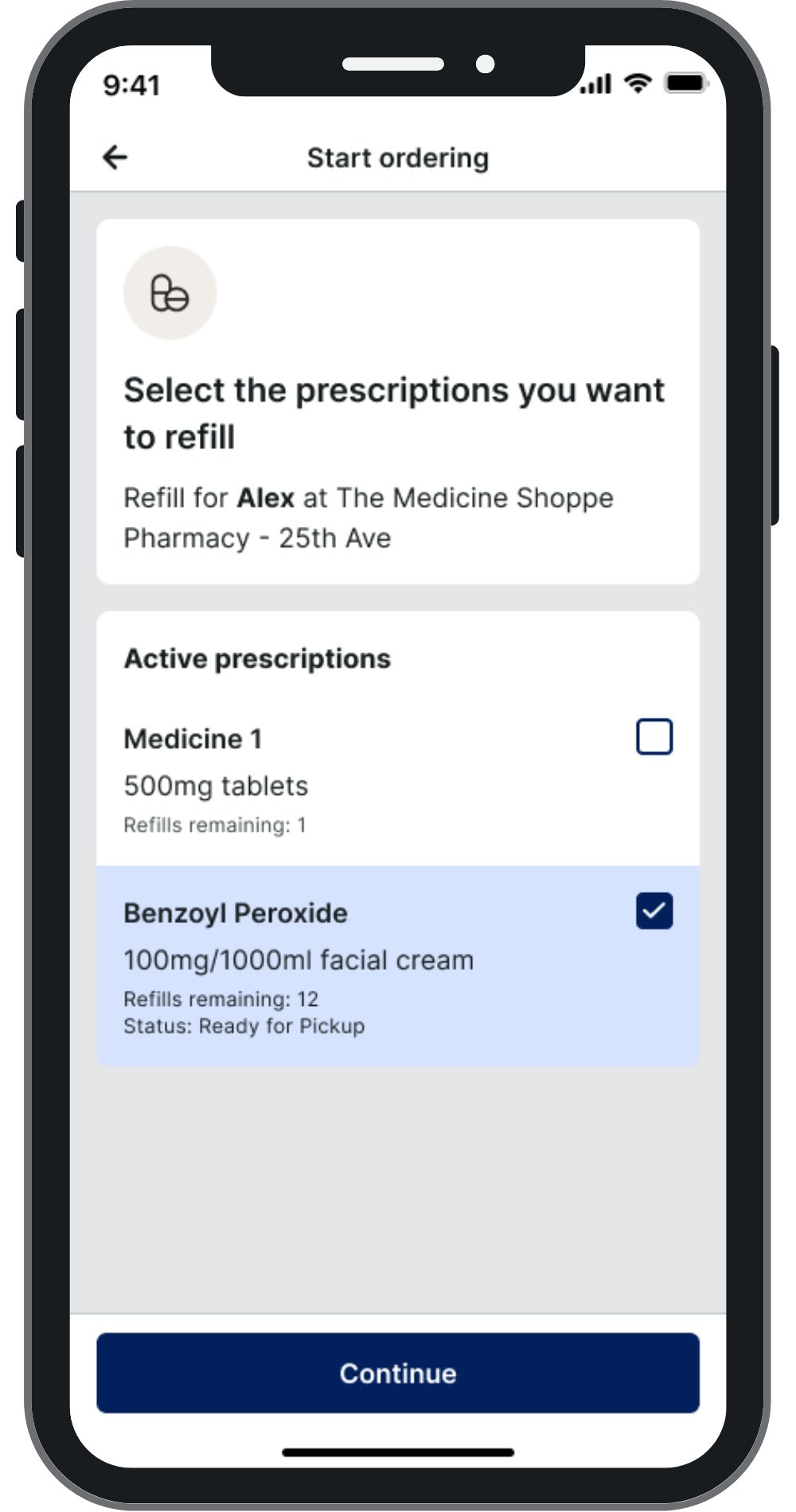
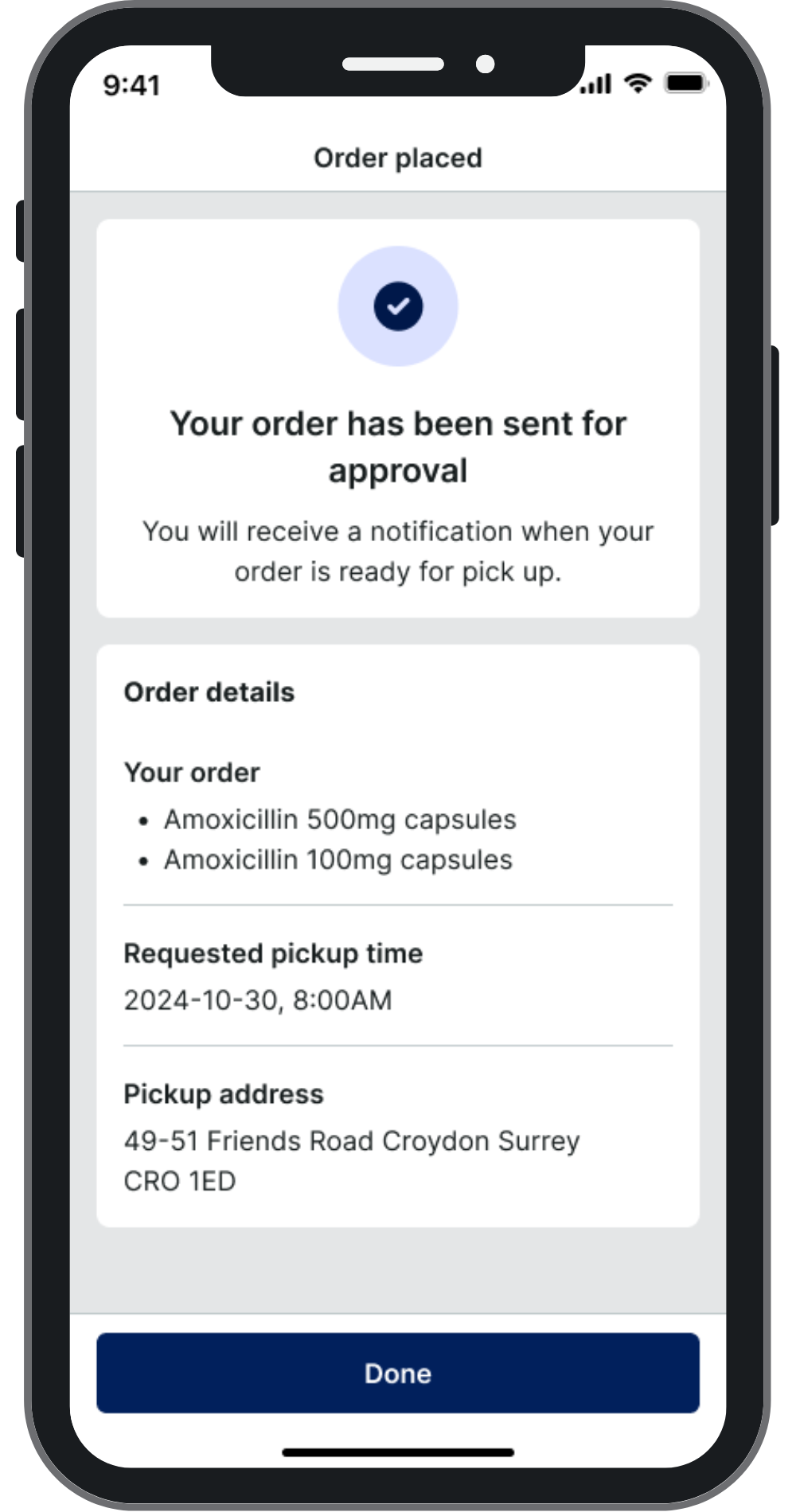
With the Patient App program, patients or their caregivers can submit online refill requests to a pharmacy for dispensing. Refill requests can be submitted for prescriptions with full, partial, or no refills remaining. When a refill request is submitted from the app, Propel Rx performs a series of checks to validate that the request can be processed. If Propel Rx deems that the prescription cannot be refilled, a response is returned in real-time to the patient on the app.
If the patient submits a bundle of refill requests on the app, a successful response will be returned if at least one prescription in the bundle can be refilled, even if some are not eligible. Patients can see which refill requests were not successful from their Order History and also from an automated email that is sent to them.
 Prescriptions that cannot be refilled via the app
-
Prescription that have been Discontinued, Inactivated, Suspended, or Transferred.
-
Prescriptions with an Incomplete or Queued status.
-
Prescriptions where the refill is too soon (this timeframe is calculated using an algorithm that takes into consideration the frequency, days supply, and other prescription parameters).
-
Prescriptions for a Deceased, Hospitalized, Inactive, or Obsolete patient status.
-
Prescriptions that have passed their expiry date (based on the Rx Expiry Date entered in the Rx Detail Extended tab).
Setting the Background IVR, Auto Refill, Web Refill Preference
In the provinces of British Columbia, Alberta (RTI enabled only), Saskatchewan, and Newfoundland and Labrador, auto-processing is NOT allowed due to requirements to view the patient's EHR Profile prior to performing prescription activities. As such, the Background IVR, Auto Refill, Web Refill preference will be OFF in these provinces.
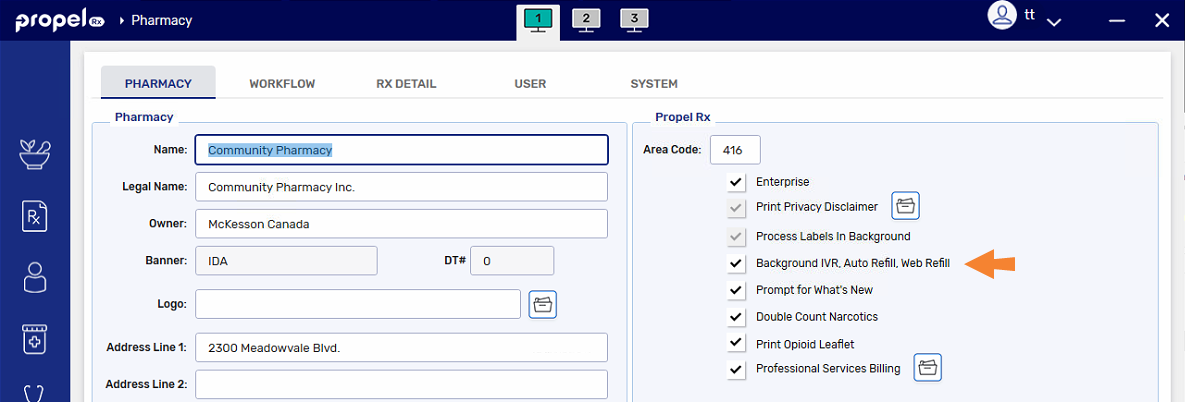
The Background IVR, Auto Refill, Web Refill preference determines whether prescriptions are automatically processed when they enter the Data Entry queue from IVR, Auto Refill, or Web Refill (such as Patient App).
-
When this preference is ON, Propel Rx will attempt to fill these prescriptions once they land on the Workbench.
-
When this preference is OFF, the prescription will be placed in the Data Entry queue for you to manually process.
In some cases, even if Background IVR, Auto Refill, Web Refill is ON, the prescription will not auto-process. Select the dropdown below to learn more.
Exceptions
-
Prescriptions that have special instructions entered from the app will trigger a prompt upon entering Rx Detail. This is a safeguard to ensure you review the special instructions, which are displayed in the prompt, prior to filling the prescriptions.
-
Prescriptions that have no or partial refills remaining will be placed in the Data Entry queue with an authorization status of "NOT." You can process the partial fill if it exists, contact the prescriber for a new prescription, or extend the prescription if possible.
-
Prescriptions that have been rejected by a Third Party will require manual intervention to complete, such as entering intervention codes, clarifying information from the patient or Third Party, etc.
To set the Background IVR, Auto Refill, Web Refill preference:
-
Select More (...) > Pharmacy.
-
Do one of the following:
-
Select the Background IVR, Auto Refill, Web Refill checkbox to turn the preference ON.
-
Deselect the Background IVR, Auto Refill, Web Refill checkbox to turn the preference OFF.
-
-
Select Save.
-
Exit Propel Rx and relaunch it on all computers for the changes to take effect.
Receiving a Refill Request
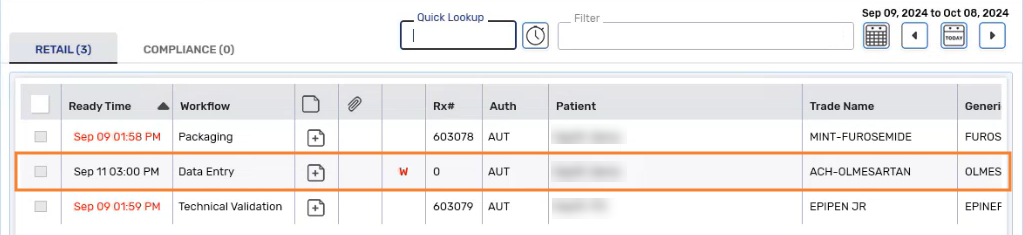
If the patient is enrolled in the Patient App program in Propel Rx, refill requests appear in the Data Entry queue with a W indicator. These prescriptions will appear on the Workbench on the day they were submitted by the patient.
When the prescription is processed into the Intake window, you will notice the following information pre-populated from the app:
-
Any special instructions from the patient appear in the Notes section. You will be prompted with these notes when the prescription is processed into Rx Detail, and they will also saved as a prescription note.
-
The Ready Time is set to the pickup date and time (or delivery date) that the patient chose on the app. You can change the Ready Time if desired.
In Healthera Connect, you can set your pharmacy's opening hours and pickup lead time to control what pickup times are available for selection on the app. A pickup lead time is your buffer time between when a prescription is ordered and when a patient can pick it up. For information on how to set this up in Healthera Connect, click here.
Processing a Refill Request
A refill request from the app is processed like a regular prescription, however additional alerts may appear during the filling process to draw your attention to important information.
To manually process a refill request from Patient App:
-
From the Workbench, ensure the Data Entry queue is selected.
-
Select the refill request.
-
Select Process. The prescription opens in the Intake window.
-
Review the prescription details.
-
Select Process to open the prescription in Rx Detail. Once the prescription enters Rx Detail, the status of the prescription on the app will change to In Progress.
-
A prompt may appear in Rx Detail, displaying:
-
Patient Notes - these instructions were entered for the pharmacy in general.
-
Delivery Instructions - these instructions were entered for the delivery of the prescription.
-
Delivery Address - this is the delivery address entered by the patient on the app. Each time a patient requests a prescription to be delivered, they must enter their delivery address on the app. This address does not write back to the Patient Folder in Propel Rx. If necessary, update the address in the Patient Folder if it does not match.
These instructions will also appear in the Alerts section at the bottom of Rx Detail and be saved as a prescription note.
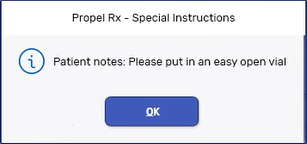
Select OK.
-
-
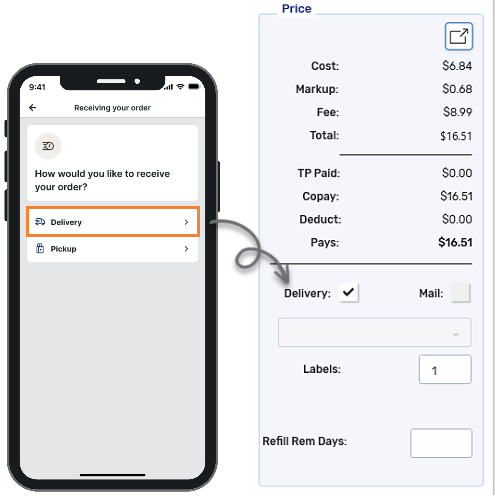
If the patient chose to have the prescription delivered using the app, the Delivery flag in Rx Detail will be selected.
-
Select Fill.
-
If Digital Workflow is enabled, complete the remaining Workflow steps for the prescription. Once Workflow is complete, the status of the prescription will change to Ready for Pickup or Delivery on the app.
Returning a Refill Request to the Workbench
If you decide not to fill a refill request after seeing the patient's requested pickup or delivery date, you can proceed as follows:
-
If the prescription is open in the Intake window, select Add to Workbench. This places the prescription back on the Workbench on the date the request was received.
-
If the prescription is open in Rx Detail, select Close to return it to the Workbench or Park to place it in the Parked Rx tile. For Parked prescriptions, you can select a Parked Until date which is when the prescription will return to the Workbench.
Selecting Escape in Rx Detail will remove the refill request from the Workbench. Do not Escape unless you want to remove the prescription!