Removing Clinical Information
Select the applicable tab to learn about removing clinical information in your province.
Once Allergies or Conditions are sent to the EHR, they cannot be removed from the EHR. You can, however, remove the record locally in Propel Rx. You may choose to do this if these records are no longer applicable, and you want to exclude them from local interaction checking.
If you need to remove a Clinical Condition or Adverse Drug Reactions (ADR) on the EHR, submit a HLTH5550 Request to Inactivate Adverse Reaction/Clinical Condition in PharmaNet Profile form to the Ministry.
If an Allergy or Condition was removed locally in error, you can add it back by performing an EHR Profile Compare. For more information about EHR Profile Compare, refer to the British Columbia PPM User Guide.
To remove clinical information locally:
-
Open the Patient Folder.
-
Select the Clinical tab.
-
In the Clinical Information section, highlight the Allergy or Condition to be removed.
-
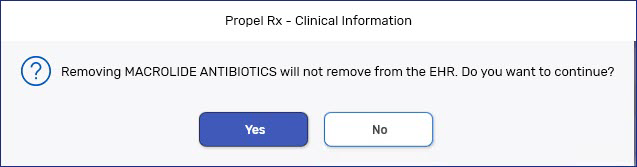
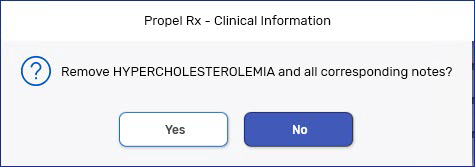
Select Remove. A prompt will appear to confirm the action.
The prompt will appear differently depending on whether the record was transmitted to the EHR.
If the record is on the EHR...
If the record is not on the EHR...
-
Select Yes.
-
Select Save.
The Allergy or Condition is removed from the Clinical Information grid and the action is recorded in the Patient Folder History tab.
Drug allergies and intolerances cannot be removed from the EHR if they were added by another pharmacy.
To remove clinical information:
-
Search for and select the patient.
-
Select the Clinical tab.
-
In the Clinical Information section, highlight the row to be removed.
-
Select Remove. A prompt displays.
-
Select Yes to remove the information.
-
Select Save.
-
If the information was added by another pharmacy, a Validation Error appears indicating that the information cannot be removed.
-
To remove clinical information:
-
Search for and select the patient.
-
Select the Clinical tab.
-
In the Clinical Information section, highlight the row to be removed.
-
Select Remove. A prompt displays.
-
Select Yes to remove the information.
-
Select Save.