Accounts Receivable Integration Frequently Asked Questions
This topic is intended for Independent pharmacies only and is not applicable to Rexall pharmacies.
 What happens when there is no communication between Propel Rx and Propel POS?
You cannot bill to AR if there is no communication between Propel Rx and Propel POS, nor can you query Propel POS for customer account codes. Communication must be re-established before processing any transactions related to Accounts Receivable posting.
When searching for customer account codes in the Patient Folder Accounts tab, the following prompt appears in the Search - POSPro window if there is no communication with Propel POS.
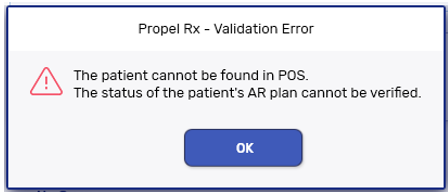
Select OK to the prompt. Once communication is re-established, select Search in the Search - POSPro window to send the search query to Propel POS a second time.
When filling prescriptions, a prompt appears in Rx Detail indicating Propel Rx cannot communicate with other PharmacySuite applications. The bill code is changed from AR/CA to CA to include all the eligible plans.
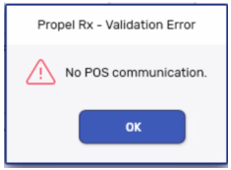
When searching for a Customer Code in Propel POS, how do you know if the correct patient is displayed in the search results?
In addition to the Customer Code and the customer's name, the search results returned from Propel POS include the patient's address and telephone number. If this is still not enough information to differentiate between patients with the same name, the best solution is to manually look up the patient's account in Propel POS.
How do I change an existing Accounts Receivable patient to a different Accounts Receivable code (i.e., change a patient from AR to XW)?
Before changing a patient's existing Accounts Receivable plan, ensure all billings have been successfully and accurately posted to the patient's account in Propel POS. Once the new plan is added, prescriptions billed to the previous Accounts Receivable plan cannot be cancelled or Rebilled.
Since a patient can only subscribe to one Accounts Receivable plan, the existing plan must be removed from the Patient Folder before the new plan can be added. It is not necessary to re-enter the patient's Customer Code.
-
Open the Patient Folder.
-
Select the Third Party tab.
-
In the list of Third Parties, highlight the Accounts Receivable plan to be removed.
-
Select Remove. A prompt indicates "Remove of Third Party will not allow claim reversals to AR" (where AR is the plan being removed).
-
Select OK to continue. The Accounts Receivable plan is removed from the list of Third Parties.
-
Select Save.
-
Select Add.
-
Search for and select the new Accounts Receivable plan in Third Party Plan Search. The new plan is added to the Third Party tab.
-
Select Save.