Setting Supplier Cost Update Preferences
For any supplier, you can control how acquisition costs and supplier prices are updated during purchase order reconciliation. This is done through the cost update rules in the Supplier Folder.
To set the supplier cost update preferences:
-
Select More (...) > Inventory > Order Pad.
-
Select the Supplier action button at the bottom.

-
Search for and select the supplier to open its folder.
-
In the Supplier Folder, select the Cost Updates tab.
-
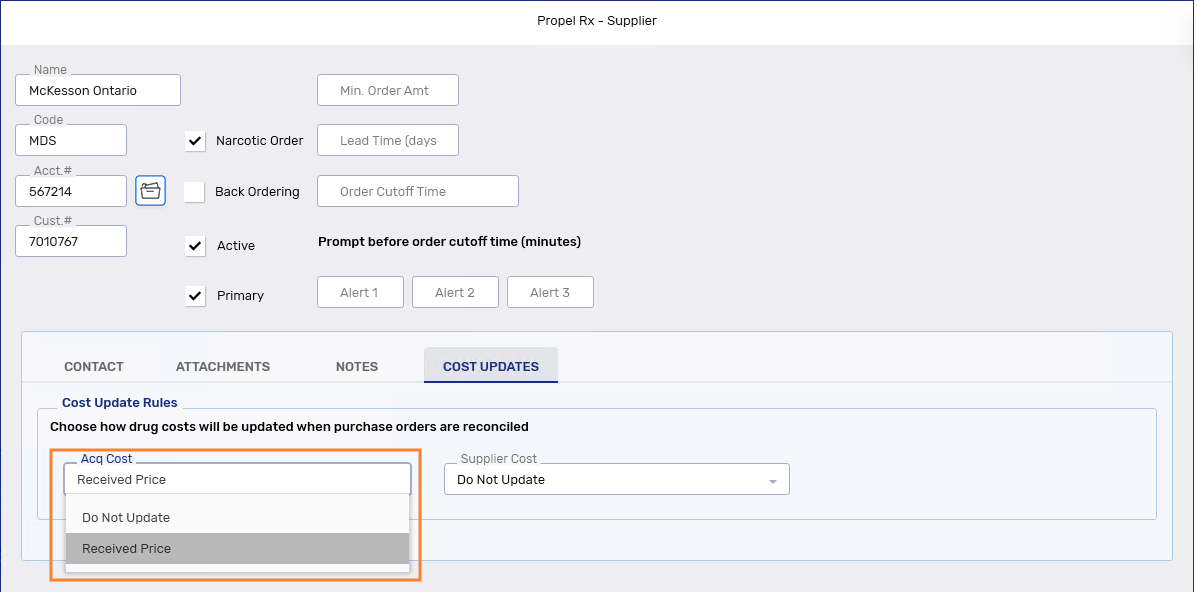
Dropdown the Acq Cost field and select one of the following:
-
Received Price - updates the Acq Cost(pk) field in the Drug Folder with the Received Price for each item in the purchase order. Each product's Acq Cost (ut) is updated automatically, based on the pack price. This is the recommend setting to keep gross profit calculations accurate, and the default setting when a new supplier is created.
 Exception
-
If Block Acq $ is ON for the pack size in the Drug Folder, acquisition costs will not update with purchase order reconciliation.
-
If the item number does not match, the acquisition costs will not update.
-
-
Do Not Update - the acquisition cost will not be updated during purchase order reconciliation.
-
-
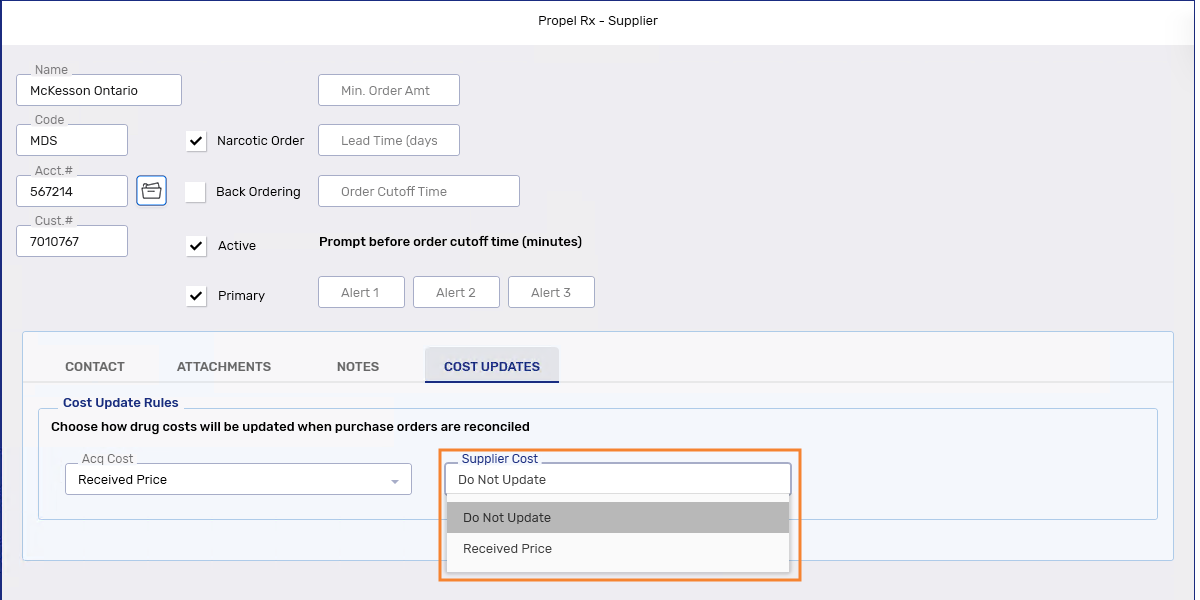
Dropdown the Supplier Cost field and select one of the following:
-
Received Price - updates the Price (pk) field in the Drug Folder with the Received Price for each item in the purchase order. Each product's Price (ut) is updated automatically, based on the pack price. Only the corresponding supplier's prices will be updated - the purchase order will not update all of the product's suppliers. This is the default setting when a new supplier is created.
Exception
-
If Block Supp $ is ON for the pack size in the Drug Folder, supplier prices will not update with purchase order reconciliation.
-
If the item number does not match, the supplier prices will not update.
-
-
Do Not Update - the supplier price will not be updated during purchase order reconciliation.
-
-
Select Save.