Adding Products to an Order Group
Products can be added to an existing Order Group if they share the same GCN. The product uses the group's reorder method and reorder parameters and shares its On Hand quantity with other group members for order management. If a product belongs to an Order Group, a corresponding icon  appears beside the Pack Size field in the Drug Folder Inventory tab > Pack Detail section.
Manual Adding Products to an Order Group
Products can also be manually added to an Order Group. Any user type has the permissions to do this.
To add a product to an Order Group:
-
Open the Drug Folder for one of the products in the Order Group.
-
In the Inventory tab, under the Packs Available section, select a pack size that belongs to the Order Group.
-
Under the Pack Detail section, select the Order Group button
 on the bottom right.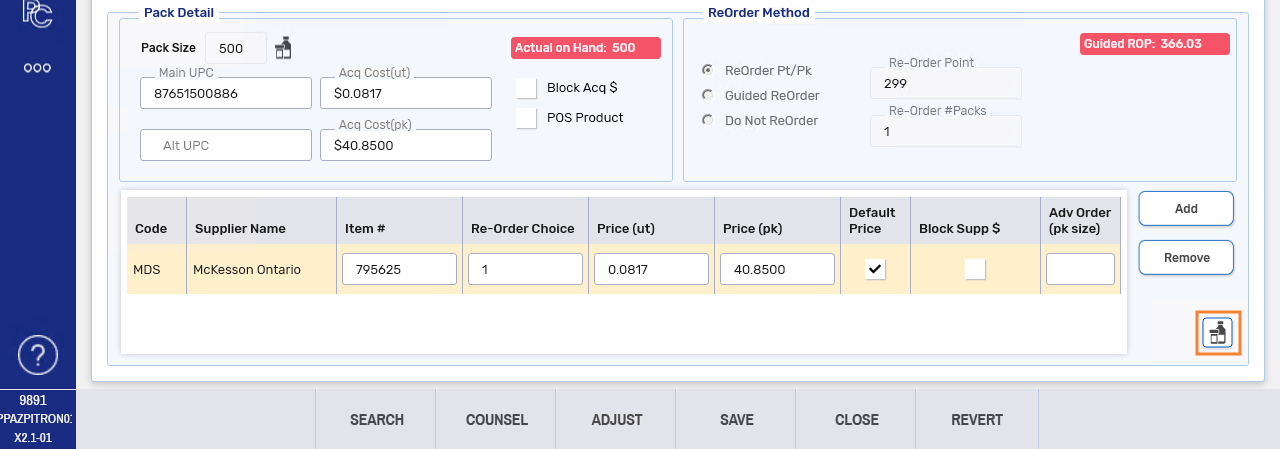
The Order Grouping window opens.
-
Select Add.
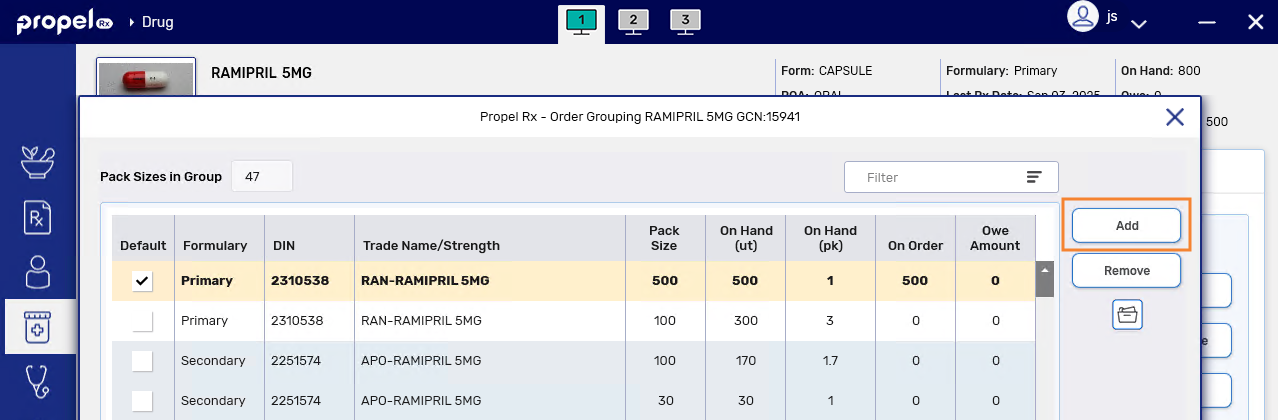
The Drug and Mixture Search window opens.
-
Search for and select the drug.
 If the GCNs don't match or any pack size for the drug is already part of an Order Group...
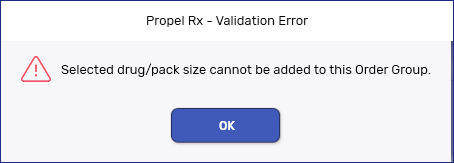
The above prompt appears stating the action is not allowed.
All pack sizes for the drug that are not already part of an Order Group will be added automatically to the Order Group.
-
Select Save then Close.
-
If the product was not monitored, the Monitor flag is turned ON automatically.
-
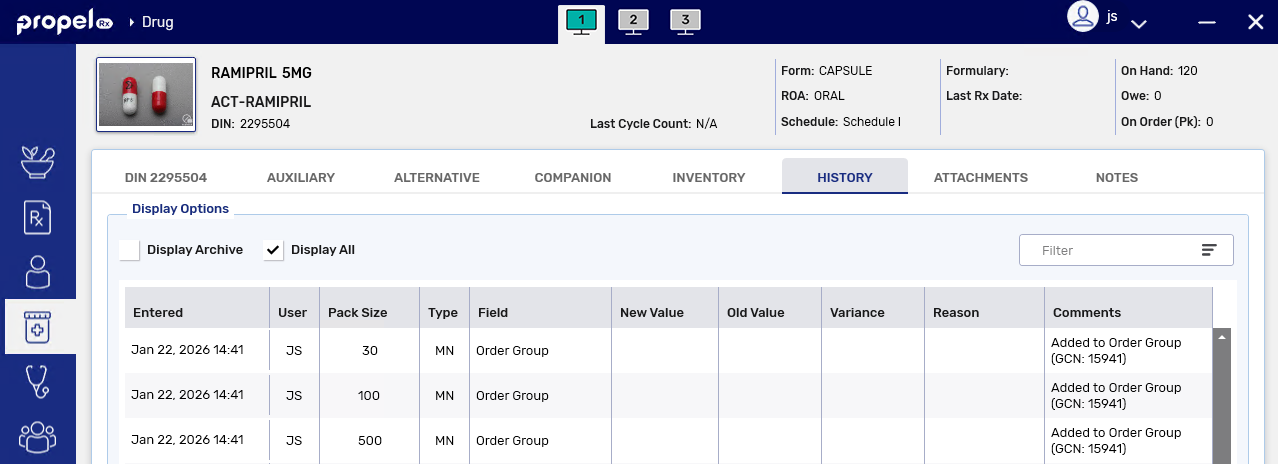
Additions to the Order Group are recorded in the Drug Folder History tab of the drug that was added.
-