Reports
 Launching Nexxsys Reports
All reports in Nexxsys are run from the same location, and using the same steps. The main differences between the reports is the criteria that defines what shows on them.
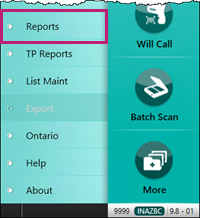
To launch Nexxsys Reports, select More > Reports.
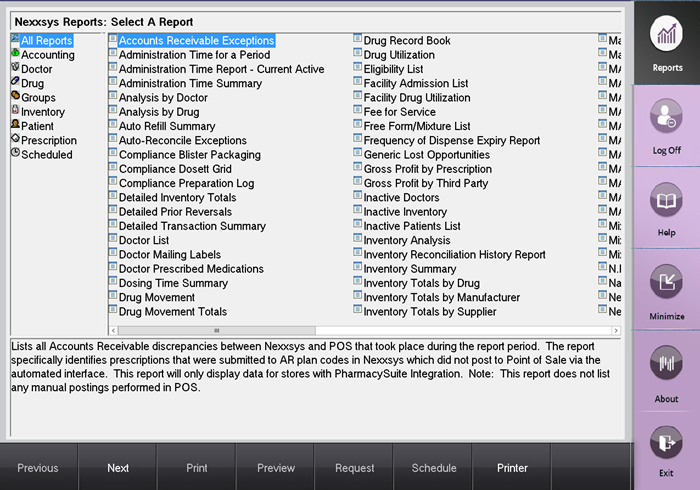
The Nexxsys Reports window opens, displaying a list of reports from which to select.
Nexxsys Reports can also be launched from most tabs of the Patient Folder by selecting the Reports button.
Running a Report
Reports are listed in alphabetical order and contain a description of each report at the bottom of the screen. They are also sorted into groups. In order for a report to be run, certain criteria must be entered.
To run a report:
- Highlight the report that needs to be run.
- Select Next.
- The report can also be double-clicked to open it.
- Enter in the required criteria for the report.
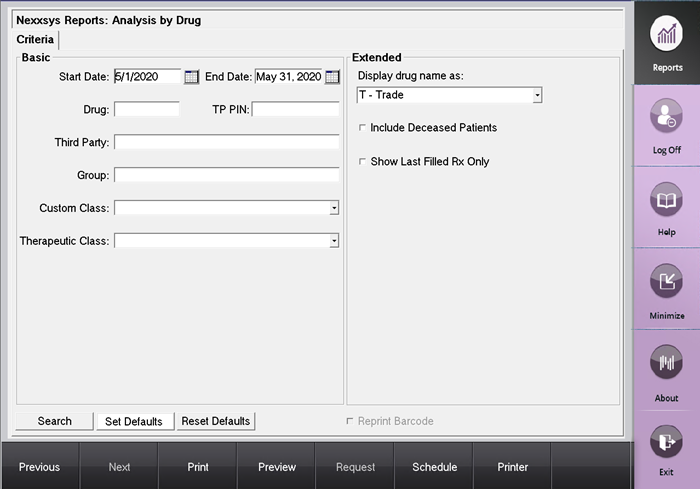
- Usually it is not necessary to enter criteria into each field, just the fields relevant to your report.
- Select Preview to view the report – do not select Print.
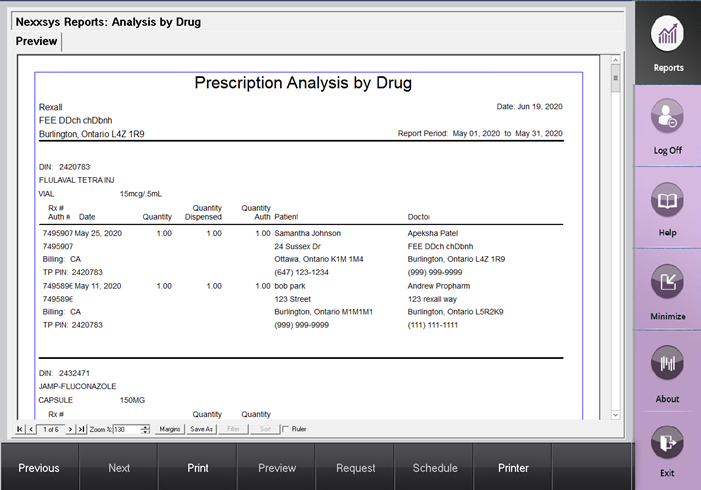
Note: From the Preview screen, some reports can be filtered and sorted using the Filter and Sort button, respectively.
Exiting from a Report
From the preview window, you may return to either the criteria screen to change the parameters of the report, or the choose a completely different report.
To exit from a report:
- In the Preview Report window select Previous to go back to the criteria selection.

- From the criteria selection, select Previous to go back to the Nexxsys Reports window.

Exiting from Nexxsys Reports
Exiting Nexxsys Reports will close all reports and the Nexxsys reports application while leaving Nexxsys open.
To exit from Nexxsys Reports:
- From anywhere in the Nexxsys Reports window, select Exit.
A confirmation message appears.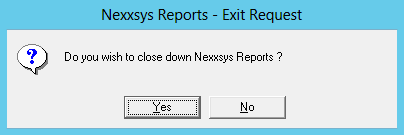
- Select Yes. Nexxsys Reports closes to the Nexxsys Workbench.
Nexxsys Reports Information
For more information on some of the reports in Nexxsys, see the following topics: