Inactivating a Prescription
After a prescription is processed on a patient’s file, it is active. If they are no longer actively taking a medication, the prescription should be inactivated. It is important that you inactivate drugs the patient is not currently taking. This makes their profile more accurate and allows for more efficient Medication Review.
To inactivate a prescription:
- Search for and select the patient.
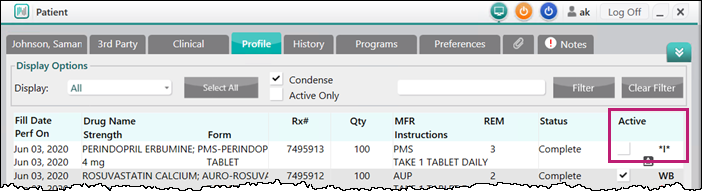
- Select the Profile tab.
- Highlight the prescription that needs to be inactivated.
- Clear the Active flag.
The Inactivate Rx window appears. - Select the appropriate option:
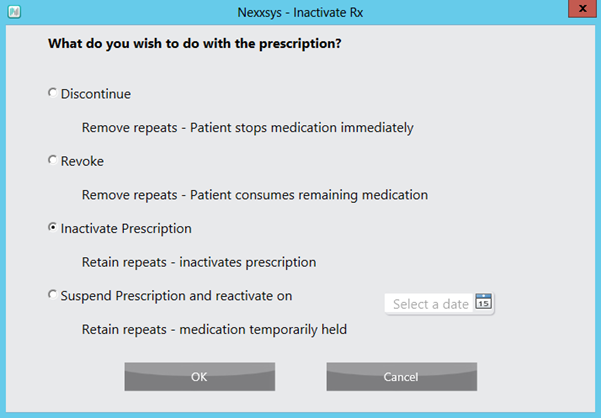
- Discontinue – patient will not longer take medication, effective immediately. Repeats are removed.
- Revoke – patient will take remaining medication until finished, then stop. Repeats are removed.
- Inactivate – patient is not currently taking but may resume. Repeats are retained.
- Suspend Prescription – patient will stop medication for specific period then resume on a chosen date. Repeats are retained.
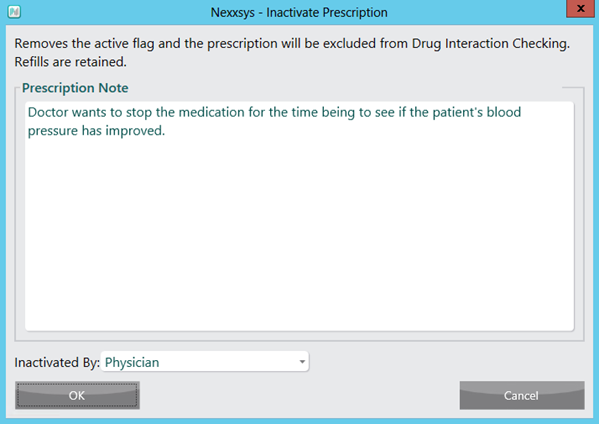
- Select OK. A window appears for additional information.
- In the Prescription Note area, enter the reason for inactivation and who initiated the inactivation process, if applicable.
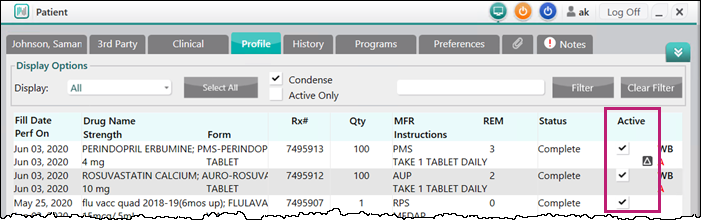
- Select OK. The Inactivate Prescription window closes to the Profile tab. The prescription is updated to reflect the inactivation.