Creating a Flu Prescription for a New Patient
During flu vaccine season, many new patients may come into the pharmacy to get the vaccine. Using Quick Patient and Flu, you can add a new patient and process a flu shot quickly and accurately.
Consent forms must be signed by the patient in order to have their flu shot given at the pharmacy.
To create a flu prescription for a new patient:
- Select the Patient navigator button. The Patient Search window appears.
- Select Quick Patient.

The Barcode Scan window appears.
- Scan the barcode on their ID with the hand scanner.
- Select OK. The Quick Patient window opens.
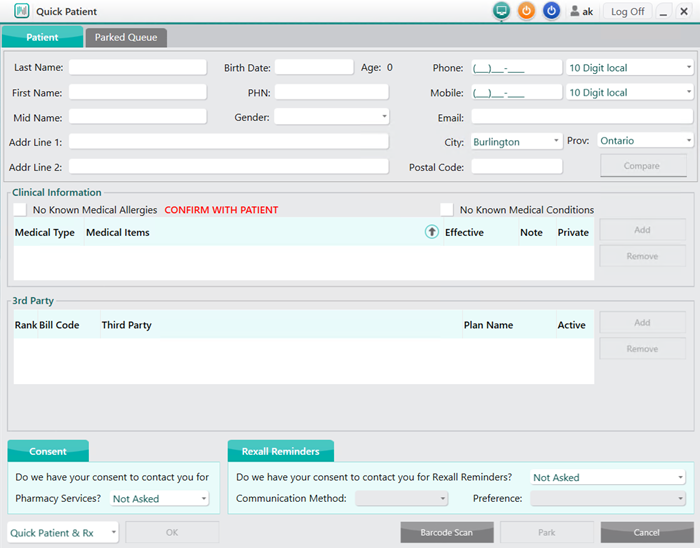
- Enter the following information, if not captured by the identification scan:
- Patient demographic information
- Clinical Information
- 3rd Party information
- Consent
- Rexall Reminders
- From the Quick Patient drop down, select Quick Patient & Flu.

- Select OK. The new Patient Folder is saved and a Flu Injection window appears.
- Enter the following information:
- Select the appropriate flu vaccine.
- Pharmacist dropdown - pharmacist administering the vaccine.
- Notes - the Lot # and the Expiry of the flu vaccine.
- Ready fields - the date and time the vaccine is being administered.
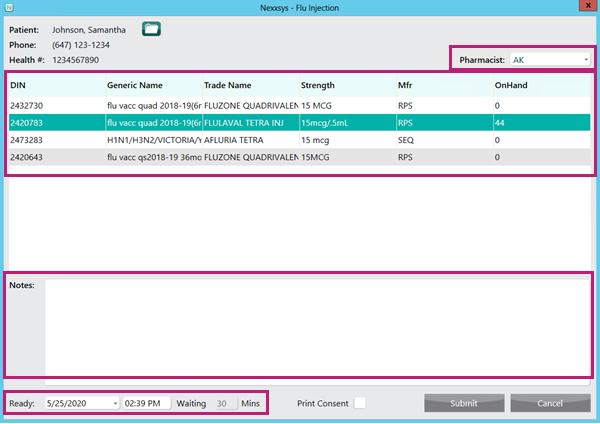
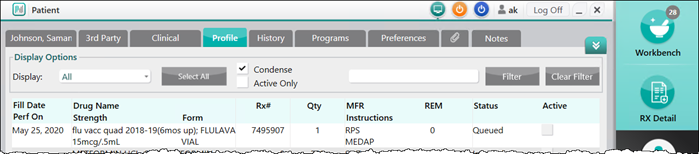
- Select Submit. The Flu Injection window closes to the patient's Profile tab. The prescription status appears as Queued.
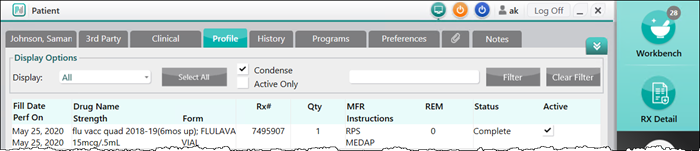
- Select Save. The prescription status is updated to Complete.
- Select the Attachments tab.
- Select Duplex Scan.
- Retrieve the signed consent form and feed it into the scanner.
-
When image is previewed, make any necessary edits and select OK.