Creating a New Mixture
To create a new mixture:
- From the Workbench , select More > Mixture. The Mixture Search window appears.
- Enter the patient's first and last name or date of birth in the corresponding fields.
- Select Search. The matching results display. Ensure the patient does not have an existing profile.
-
Select
New.

A new Mixture Folder opens.
- Enter the following information:
- Trade (60 characters)
 Creating a Trade Name Information
Starting with the highest concentration of Active Ingredient
Followed by percentage/ratio of that Active Ingredient
Followed by the 2nd highest concentration of Active Ingredient and percentage/ratio, etc.
Followed by the Base Ingredient(s)
Using full ingredient names when possible. If abbreviations are required (for space), the following abbreviation order should be followed;
Forms
Base Ingredients
Active Ingredients
- For example:
- Glutathione 1.25% & DMSO 6.25% & Vitamin C 1.25% (48 characters)
Estriol 80% & Estradiol 20% in HRT Base (39 characters)
Bupivacaine 0.2% & Epinephrine1:200000 in NaCl (46 characters)
- Compound
- Schedule
- Mixture Qty
Note: It is best practice to enter 100 to calculate percentages easier.
- Mixing Time
- Mixture Type
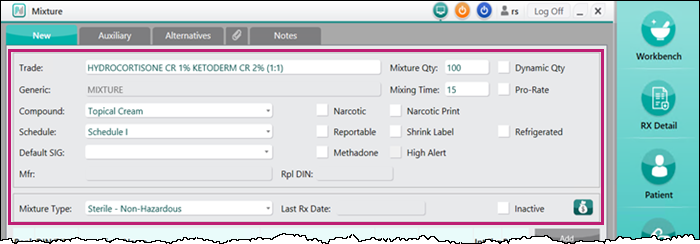
- Trade (60 characters)
- To add ingredients, select Add. The Drug Search window opens.
- Search for and select the drug. A new row is added to the ingredients.
- Enter the following information:
- Size
- Qty
- Units
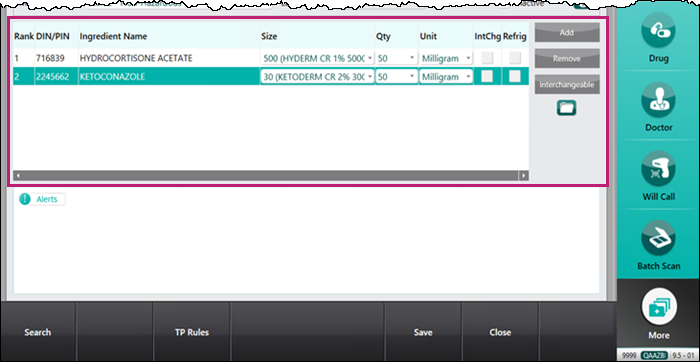
- Repeat steps 6 — 8 until all ingredients have been added to the Mixture Folder.
- Select Save. The new mixture is assigned a PIN.
Duplicate Validation
When saving a new mixture, a check is done against the ingredient DINs, quantities and units for other mixtures. If an existing Mixture Folder exists that matches exactly, a message will appear to update or use the existing file.
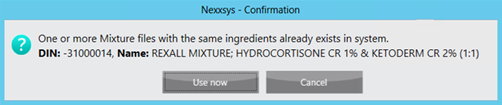
Select one of the options:
- Use Now - automatically substitutes the existing Mixture Folder for the prescription and discards the new Mixture Folder.
- Cancel - closes the prompt but does not discard the new Mixture Folder.