Processing COVID-19 Vaccine Prescriptions
A COVID-19 vaccine prescription can be processed three ways:
-
From a COVID-19 Injection or COVID-19 Injection Follow-up activity.
-
From a patient's Profile by selecting Rx > PFS > COVID Injection.
Processing a COVID-19 vaccine prescription with the above methods ensures that the information in the prescription and on the Patient Consent Form are automatically populated.
Once a prescription is processed, a label and immunization record prints. For more information, see Label and Immunization Record.
Note: Before creating a new COVID-19 Injection Activity, or processing a new COVID-19 vaccine prescription from the Profile tab, ensure there is no activity already scheduled. If so, process the COVID-19 vaccine prescription directly from the COVID-19 Injection Activity.
Recommended Process
The recommended process for processing COVID-19 vaccine prescriptions is the following:
-
Process the first dose of the vaccine from the patient's Profile tab from Rx > PFS > COVID injection and schedule a COVID Injection Follow-up activity. For more information, see Processing COVID-19 Vaccine Prescriptions - Patient's Profile (Rx > PFS > COVID Injection).
-
Process any subsequent doses from the scheduled COVID Injection Follow-up activity. For more information, see Processing COVID-19 Vaccine Prescriptions - From a COVID-19 Injection or COVID-19 Follow-up Activity.
Use the dropdowns below to learn more about using each method to process a COVID-19 vaccine prescription.
 From a COVID-19 Injection or COVID-19 Follow-up Activity
COVID-19 Injection Activities should be scheduled when a patient asks to book an appointment ahead of time to receive the vaccine. For more information, see Scheduling COVID-19 Injection Activities.
When a patient comes in for their scheduled COVID-19 injection appointment, the prescription can be processed directly from the scheduled activity.
To process a COVID-19 vaccine prescription from a scheduled activity:
-
From the Workbench, select the Activities dashboard.
-
Select the COVID-19 Injection or COVID-19 Injection Follow-up activity.
-
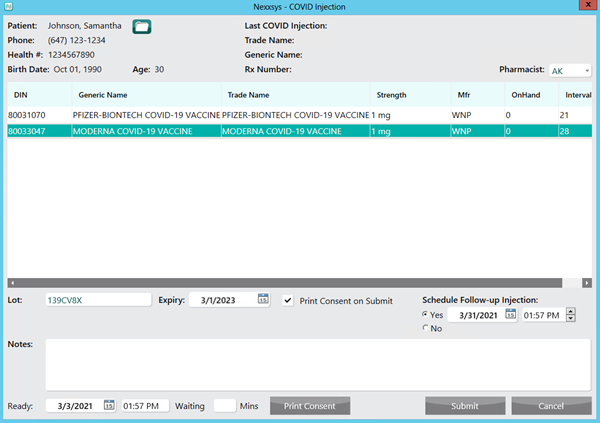
Select Complete. The COVID Injection window appears. For more information, see COVID Injection Window Overview.
Note: If there is already a prescription on the Workbench for the COVID-19 Injection activity selected, a prompt displays.
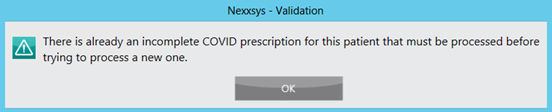
Locate the prescription on the Workbench or in the patient's Profile tab to complete the prescription.
-
Enter the following information:
-
Pharmacist dropdown - defaulted to the pharmacist logged in. If this is not the correct pharmacist, select the appropriate initials.
-
COVID-19 vaccine
-
Lot#
-
Expiry Date
Note: If the Lot # and expiry date were entered in the Drug Folder, this information is automatically populated.
-
-
Select if there is going to be a follow-up injection.
- Yes - selected by default if this is the initial dose or being processed from a COVID-19 Injection activity. A COVID-19 Follow-up Injection activity will be scheduled once Submit is selected. The date is defaulted based on the interval days of the vaccine (recommended days between doses), but can be changed.
-
No - selected by default if this is a subsequent dose or being processed from a COVID-19 Injection Follow-up activity. A COVID-19 Injection Follow-up activity will not be scheduled.
-
Select Submit.
If your province allows auto-processing, the prescription will be automatically processed to completion. If your province does not allow auto-processing, the prescription is placed on the To Do tab to be processed as usual.
Patient's Profile (Rx > PFS > COVID Injection
To process a COVID-19 vaccine prescription from the patient's Profile:
-
Search for and select the patient.
-
Select the Profile tab.
-
Select Rx > PFS > COVID Injection. The COVID Injection window appears. For more information, see COVID Injection Window Overview.
Note: If there is already a prescription on the Workbench for the COVID-19 Injection activity selected, a prompt displays.
Locate the prescription on the Workbench or in the patient's Profile tab to complete the prescription.
-
Enter the following information:
-
Pharmacist dropdown - defaulted to the pharmacist logged in. If this is not the correct pharmacist, select the appropriate initials.
-
COVID-19 vaccine
-
Lot#
-
Expiry Date
Note: If the Lot # and expiry date were entered in the Drug Folder, this information is automatically populated.
-
-
Select if there is going to be a follow-up injection.
- Yes - selected by default if this is the initial dose or being processed from a COVID-19 Injection activity. A COVID-19 Follow-up Injection activity will be scheduled once Submit is selected. The date is defaulted based on the interval days of the vaccine (recommended days between doses), but can be changed.
-
No - selected by default if this is a subsequent dose or being processed from a COVID-19 Injection Follow-up activity. A COVID-19 Injection Follow-up activity will not be scheduled.
-
Select Submit.
If your province allows auto-processing, the prescription will be automatically processed to completion. If your province does not allow auto-processing, the prescription is placed on the To Do tab to be processed as usual.
Quick Patient & COVID
When a patient that has never filled a prescription at your location before comes in for a COVID-19 injection, Quick Patient can be used to quickly create the patient and automatically begin the process of generating a COVID-19 vaccine prescription.
To use Quick Patient to process and COVID-19 vaccine prescription,
- Select the Patient navigator button. The Patient Search window appears.
- Select Quick Patient.

The Barcode Scan window appears.
- Scan the barcode on their ID with the hand scanner.
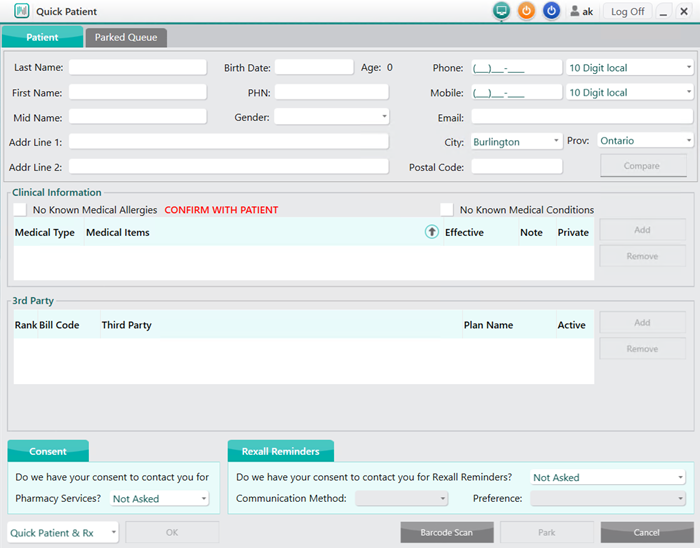
- Select OK. The Quick Patient window opens.
-
Enter the patient's information.
-
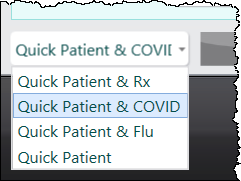
From the Quick Patient dropdown, select Quick Patient & COVID.
-
Select OK. The new Patient Folder is saved and the COVID Injection window appears. For more information, see COVID Injection Window Overview.
-
Enter the following information:
-
Pharmacist dropdown - defaulted to the pharmacist logged in. If this is not the correct pharmacist, select the appropriate initials.
-
COVID-19 vaccine
-
Lot#
-
Expiry Date
Note: If the Lot # and expiry date were entered in the Drug Folder, this information is automatically populated.
-
-
Select if there is going to be a follow-up injection.
- Yes - selected by default if this is the initial dose or being processed from a COVID-19 Injection activity. A COVID-19 Follow-up Injection activity will be scheduled once Submit is selected. The date is defaulted based on the interval days of the vaccine (recommended days between doses), but can be changed.
-
No - selected by default if this is a subsequent dose or being processed from a COVID-19 Injection Follow-up activity. A COVID-19 Injection Follow-up activity will not be scheduled.
-
Select Submit.
Label and Immunization Record
Once a prescription has been processed, a label and a COVID-19 Immunization Record prints.
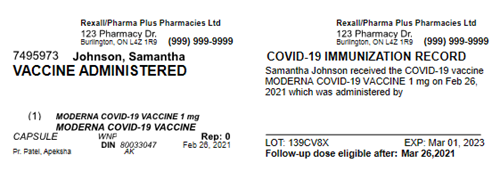
The COVID-19 Immunization Record displays:
-
Patient name
-
COVID-19 vaccine dispensed
-
Date the vaccine was provided
-
Space to write who administered the vaccine
-
Lot # and Expiry Date, if entered
-
Follow-up dose eligibility date, based on the interval
Note: The Follow-up dose eligibility date will not display if a follow-up was not scheduled (No was selected in the Schedule Follow-up section of the Covid Injection window).
Additional Information
Hold, escaped or cancelled prescriptions
When processing the COVID-19 vaccine prescription, if the prescription is placed on Hold, escaped from or cancelled, the follow prompt displays.
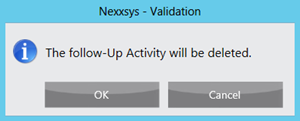
Select one of the following options:
-
OK - continue with the hold, escape or cancellation process. Removes the follow-up activity currently in the Activities dashboard. If required, a new activity must be scheduled for the initial dose.
-
Cancel - stops the hold, escape or cancellation process. The follow-up activity is not removed.